In case you have forgotten the root admin password, you can reset it by removing all users, organisation and invites from the SQLite database.
Starting from v0.76.0, multiple services (Query Service, Frontend, and Alertmanager) have been merged into a single signoz binary/image. Please follow the steps below based on your SigNoz version.
The guide mainly covers the following:
- Exec into the
signozcontainer - Remove all users, organisation and invites using SQLite shell
- Restart the
signozcontainer
Exec into signoz Container
Docker Standalone
docker exec -it signoz-signoz shDocker Swarm
docker exec -it $(docker ps -q -f name=signoz_signoz) shKubernetes
kubectl -n platform exec -it pod/my-release-signoz-signoz-0 -- shSteps to Remove All Users, Organisation and Invites
Step 1: Install SQLite and Connect to the Database File
apk update
apk add sqlite

sqlite3 /var/lib/signoz/signoz.db
Step 2: Remove All Users and Organisation
In the sqlite shell, run the following commands:
select * from users;
select * from organizations;
select * from invites;

delete from users;
delete from organizations;
delete from invites;
Step 3: Verify the Users, Organisation and Invites are Removed
select * from users;

select * from organizations;

select * from invites;
Step 4: Exit from SQLite Shell and Container Shell
To exit from the sqlite shell, press CTRL + D and then exit from the
signoz container.
Step 5: Restart the signoz-signoz Container
To restart the signoz container, run the following command:
For Docker Users
docker restart signoz-signozFor Docker Swarm Users
docker service update --force signoz_signozFor Kubernetes Users
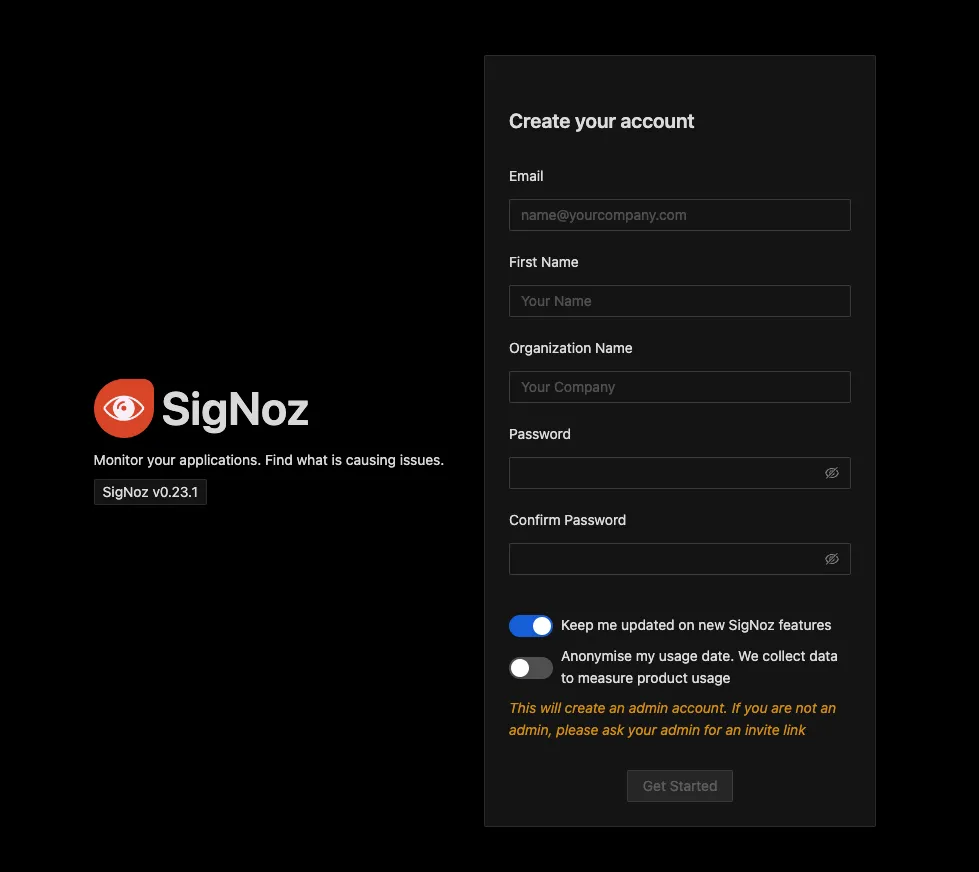
kubectl -n platform rollout restart statefulset/my-release-signoz-signozNow, you should be able to create a new admin account from SigNoz UI: http://localhost:3301.
The guide mainly covers the following:
- Exec into the
query-servicecontainer - Remove all users, organisation and invites using SQLite shell
- Restart the
query-servicecontainer
Exec into query-service Container
Docker Standalone
docker exec -it signoz-query-service shDocker Swarm
docker exec -it $(docker ps -q -f name=signoz_query-service) shKubernetes
kubectl -n platform exec -it pod/my-release-signoz-query-service-0 -- shSteps to Remove All Users, Organisation and Invites
Step 1: Install SQLite and Connect to the Database File
apk update
apk add sqlite

sqlite3 /var/lib/signoz/signoz.db
Step 2: Remove All Users and Organisation
In the sqlite shell, run the following commands:
select * from users;
select * from organizations;
select * from invites;

delete from users;
delete from organizations;
delete from invites;
Step 3: Verify the Users, Organisation and Invites are Removed
select * from users;

select * from organizations;

select * from invites;
Step 4: Exit from SQLite Shell and Container Shell
To exit from the sqlite shell, press CTRL + D and then exit from the
query-service container.
Step 5: Restart the signoz-query-service Container
To restart the query-service container, run the following command:
For Docker Users
docker restart signoz-query-serviceFor Docker Swarm Users
docker service update --force signoz_query-serviceFor Kubernetes Users
kubectl -n platform rollout restart statefulset/my-release-signoz-query-serviceNow, you should be able to create a new admin account from SigNoz UI: http://localhost:3301.


