Overview
This guide walks you through setting up observability and monitoring for AutoGen using OpenTelemetry and exporting logs, traces, and metrics to SigNoz. With this integration, you can observe various models performance, capture request/response details, and track system-level metrics in SigNoz, giving you real-time visibility into latency, error rates, and usage trends for your AutoGen applications.
Instrumenting AutoGen in your AI applications with telemetry ensures full observability across your AI workflows, making it easier to debug issues, optimize performance, and understand user interactions. By leveraging SigNoz, you can analyze correlated traces, logs, and metrics in unified dashboards, configure alerts, and gain actionable insights to continuously improve reliability, responsiveness, and user experience.
Prerequisites
- A SigNoz Cloud account with an active ingestion key
- Internet access to send telemetry data to SigNoz Cloud
- Python 3.10+ with AutoGen installed (
pip install autogen-agentchat autogen-ext autogen-core) - For Python:
pipinstalled for managing Python packages and (optional but recommended) a Python virtual environment to isolate dependencies
Monitoring AutoGen
For more detailed info on tracing your AutoGen applications click here. For logging, click here.
No-code auto-instrumentation is recommended for quick setup with minimal code changes. It's ideal when you want to get observability up and running without modifying your application code and are leveraging standard instrumentor libraries.
Step 1: Install the necessary packages in your Python environment.
pip install \
  opentelemetry-api \
  opentelemetry-distro \
  opentelemetry-exporter-otlp \
  httpx \
  "autogen-agentchat" \
  "autogen-ext[openai]" \
  "autogen-core"
Step 2: Add Automatic Instrumentation
opentelemetry-bootstrap --action=installStep 3: Instrument your AutoGen application
For Traces:
Configure AutoGen to use OpenTelemetry tracing by passing the tracer provider to the runtime:
from opentelemetry import trace
from autogen_core import SingleThreadedAgentRuntime

tracer_provider = trace.get_tracer_provider()
single_threaded_runtime = SingleThreadedAgentRuntime(tracer_provider=tracer_provider)
For Logs:
Configure AutoGen logging to capture trace logs:
import logging

from autogen_core import TRACE_LOGGER_NAME

logging.basicConfig(level=logging.WARNING)
logger = logging.getLogger(TRACE_LOGGER_NAME)
logger.addHandler(logging.StreamHandler())
logger.setLevel(logging.DEBUG)
📌 Note: Ensure this is configured before initializing your AutoGen agents to properly instrument your application
Step 4: Run an example
from autogen_agentchat.agents import AssistantAgent
from autogen_agentchat.ui import Console
from autogen_ext.models.openai import OpenAIChatCompletionClient
from opentelemetry import trace
from autogen_core import (

    SingleThreadedAgentRuntime,
    TRACE_LOGGER_NAME
)
import logging
import asyncio


logging.basicConfig(level=logging.WARNING)


logger = logging.getLogger(TRACE_LOGGER_NAME)
logger.addHandler(logging.StreamHandler())
logger.setLevel(logging.DEBUG)

# Get the tracer provider from your application
tracer_provider = trace.get_tracer_provider()

# for single threaded runtime
single_threaded_runtime = SingleThreadedAgentRuntime(tracer_provider=tracer_provider)


# Define a model client.
model_client = OpenAIChatCompletionClient(
    model="gpt-4o-mini"
)


# Define a simple function tool that the agent can use.
# For this example, we use a fake weather tool for demonstration purposes.
async def get_weather(city: str) -> str:
    """Get the weather for a given city."""
    return f"The weather in {city} is 73 degrees and Sunny."


# Define an AssistantAgent with the model, tool, system message, and reflection enabled.
# The system message instructs the agent via natural language.
agent = AssistantAgent(
    name="weather_agent",
    model_client=model_client,
    tools=[get_weather],
    system_message="You are a helpful assistant.",
    reflect_on_tool_use=True,
    model_client_stream=True,  # Enable streaming tokens from the model client.
)


# Run the agent and stream the messages to the console.
async def main() -> None:
    await Console(agent.run_stream(task="What is the weather in New York?"))
    # Close the connection to the model client.
    await model_client.close()

asyncio.run(main())
📌 Note: Before running this code, ensure that you have set the environment variable
OPENAI_API_KEYwith your generated API key.
Step 5: Run your application with auto-instrumentation
OTEL_RESOURCE_ATTRIBUTES="service.name=<service_name>" \
OTEL_EXPORTER_OTLP_ENDPOINT="https://ingest.<region>.signoz.cloud:443" \
OTEL_EXPORTER_OTLP_HEADERS="signoz-ingestion-key=<your-ingestion-key>" \
OTEL_EXPORTER_OTLP_PROTOCOL=grpc \
OTEL_TRACES_EXPORTER=otlp \
OTEL_METRICS_EXPORTER=otlp \
OTEL_LOGS_EXPORTER=otlp \
OTEL_PYTHON_LOG_CORRELATION=true \
OTEL_PYTHON_LOGGING_AUTO_INSTRUMENTATION_ENABLED=true \
opentelemetry-instrument <your_run_command><service_name>is the name of your service<region>: Your SigNoz Cloud region<your-ingestion-key>: Your SigNoz ingestion key- Replace
<your_run_command>with the actual command you would use to run your application. For example:python main.py
Code-based instrumentation gives you fine-grained control over your telemetry configuration. Use this approach when you need to customize resource attributes, sampling strategies, or integrate with existing observability infrastructure.
Step 1: Install the necessary packages in your Python environment.
pip install \
  opentelemetry-api \
  opentelemetry-sdk \
  opentelemetry-exporter-otlp \
  opentelemetry-instrumentation-httpx \
  opentelemetry-instrumentation-system-metrics \
  "autogen-agentchat" \
  "autogen-ext[openai]" \
  "autogen-core"
Step 2: Import the necessary modules in your Python application
Traces:
from opentelemetry import trace
from opentelemetry.sdk.resources import Resource
from opentelemetry.sdk.trace import TracerProvider
from opentelemetry.sdk.trace.export import BatchSpanProcessor
from opentelemetry.exporter.otlp.proto.http.trace_exporter import OTLPSpanExporter
Logs:
from opentelemetry.sdk._logs import LoggerProvider, LoggingHandler
from opentelemetry.sdk._logs.export import BatchLogRecordProcessor
from opentelemetry.exporter.otlp.proto.http._log_exporter import OTLPLogExporter
from opentelemetry._logs import set_logger_provider
import logging
Metrics:
from opentelemetry.sdk.metrics import MeterProvider
from opentelemetry.exporter.otlp.proto.http.metric_exporter import OTLPMetricExporter
from opentelemetry.sdk.metrics.export import PeriodicExportingMetricReader
from opentelemetry import metrics
from opentelemetry.instrumentation.system_metrics import SystemMetricsInstrumentor
from opentelemetry.instrumentation.httpx import HTTPXClientInstrumentor
Step 3: Set up the OpenTelemetry Tracer Provider to send traces directly to SigNoz Cloud
from opentelemetry.sdk.resources import Resource
from opentelemetry.sdk.trace import TracerProvider
from opentelemetry.sdk.trace.export import BatchSpanProcessor
from opentelemetry.exporter.otlp.proto.http.trace_exporter import OTLPSpanExporter
from opentelemetry import trace
import os


resource = Resource.create({"service.name": "<service_name>"})
provider = TracerProvider(resource=resource)
span_exporter = OTLPSpanExporter(
    endpoint= os.getenv("OTEL_EXPORTER_TRACES_ENDPOINT"),
    headers={"signoz-ingestion-key": os.getenv("SIGNOZ_INGESTION_KEY")},
)
processor = BatchSpanProcessor(span_exporter)
provider.add_span_processor(processor)
trace.set_tracer_provider(provider)<service_name>is the name of your serviceOTEL_EXPORTER_TRACES_ENDPOINT→ SigNoz Cloud trace endpoint with appropriate region:https://ingest.<region>.signoz.cloud:443/v1/tracesSIGNOZ_INGESTION_KEY→ Your SigNoz ingestion key
Step 4: Setup Logs
import logging
from opentelemetry.sdk.resources import Resource
from opentelemetry._logs import set_logger_provider
from opentelemetry.sdk._logs import LoggerProvider, LoggingHandler
from opentelemetry.sdk._logs.export import BatchLogRecordProcessor
from opentelemetry.exporter.otlp.proto.http._log_exporter import OTLPLogExporter
import os

resource = Resource.create({"service.name": "<service_name>"})
logger_provider = LoggerProvider(resource=resource)
set_logger_provider(logger_provider)

otlp_log_exporter = OTLPLogExporter(
    endpoint= os.getenv("OTEL_EXPORTER_LOGS_ENDPOINT"),
    headers={"signoz-ingestion-key": os.getenv("SIGNOZ_INGESTION_KEY")},
)
logger_provider.add_log_record_processor(
    BatchLogRecordProcessor(otlp_log_exporter)
)
# Attach OTel logging handler to root logger
handler = LoggingHandler(level=logging.INFO, logger_provider=logger_provider)
logging.basicConfig(level=logging.INFO, handlers=[handler])

logger = logging.getLogger(__name__)<service_name>is the name of your serviceOTEL_EXPORTER_LOGS_ENDPOINT→ SigNoz Cloud endpoint with appropriate region:https://ingest.<region>.signoz.cloud:443/v1/logsSIGNOZ_INGESTION_KEY→ Your SigNoz ingestion key
Step 5: Setup Metrics
from opentelemetry.sdk.resources import Resource
from opentelemetry.sdk.metrics import MeterProvider
from opentelemetry.exporter.otlp.proto.http.metric_exporter import OTLPMetricExporter
from opentelemetry.sdk.metrics.export import PeriodicExportingMetricReader
from opentelemetry import metrics
from opentelemetry.instrumentation.system_metrics import SystemMetricsInstrumentor
from opentelemetry.instrumentation.httpx import HTTPXClientInstrumentor
import os

resource = Resource.create({"service.name": "<service-name>"})
metric_exporter = OTLPMetricExporter(
    endpoint= os.getenv("OTEL_EXPORTER_METRICS_ENDPOINT"),
    headers={"signoz-ingestion-key": os.getenv("SIGNOZ_INGESTION_KEY")},
)
reader = PeriodicExportingMetricReader(metric_exporter)
metric_provider = MeterProvider(metric_readers=[reader], resource=resource)
metrics.set_meter_provider(metric_provider)

meter = metrics.get_meter(__name__)

# turn on out-of-the-box metrics
SystemMetricsInstrumentor().instrument()
HTTPXClientInstrumentor().instrument()<service_name>is the name of your serviceOTEL_EXPORTER_METRICS_ENDPOINT→ SigNoz Cloud endpoint with appropriate region:https://ingest.<region>.signoz.cloud:443/v1/metricsSIGNOZ_INGESTION_KEY→ Your SigNoz ingestion key
📌 Note: SystemMetricsInstrumentor provides system metrics (CPU, memory, etc.), and HTTPXClientInstrumentor provides outbound HTTP request metrics such as request duration. If you want to add custom metrics to your AutoGen application, see Python Custom Metrics.
Step 6: Instrument your AutoGen application
For Traces:
Configure AutoGen to use OpenTelemetry tracing by passing the tracer provider to the runtime:
from opentelemetry import trace
from autogen_core import SingleThreadedAgentRuntime

tracer_provider = trace.get_tracer_provider()
single_threaded_runtime = SingleThreadedAgentRuntime(tracer_provider=tracer_provider)
For Logs:
Configure AutoGen logging to capture trace logs:
import logging
from autogen_core import TRACE_LOGGER_NAME

logging.basicConfig(level=logging.WARNING)
logger = logging.getLogger(TRACE_LOGGER_NAME)
logger.addHandler(logging.StreamHandler())
logger.setLevel(logging.DEBUG)
📌 Note: Ensure this is configured before initializing your AutoGen agents to properly instrument your application
Step 7: Run an example
from autogen_agentchat.agents import AssistantAgent
from autogen_agentchat.ui import Console
from autogen_ext.models.openai import OpenAIChatCompletionClient
import asyncio


# Define a model client.
model_client = OpenAIChatCompletionClient(
    model="gpt-4o-mini"
)


# Define a simple function tool that the agent can use.
# For this example, we use a fake weather tool for demonstration purposes.
async def get_weather(city: str) -> str:
    """Get the weather for a given city."""
    return f"The weather in {city} is 73 degrees and Sunny."


# Define an AssistantAgent with the model, tool, system message, and reflection enabled.
# The system message instructs the agent via natural language.
agent = AssistantAgent(
    name="weather_agent",
    model_client=model_client,
    tools=[get_weather],
    system_message="You are a helpful assistant.",
    reflect_on_tool_use=True,
    model_client_stream=True,  # Enable streaming tokens from the model client.
)


# Run the agent and stream the messages to the console.
async def main() -> None:
    await Console(agent.run_stream(task="What is the weather in New York?"))
    # Close the connection to the model client.
    await model_client.close()

asyncio.run(main())
📌 Note: Before running this code, ensure that you have set the environment variable
OPENAI_API_KEYwith your generated API key.
View Traces, Logs, and Metrics in SigNoz
Your AutoGen commands should now automatically emit traces, logs, and metrics.
You should be able to view traces in Signoz Cloud under the traces tab:

When you click on a trace in SigNoz, you'll see a detailed view of the trace, including all associated spans, along with their events and attributes.

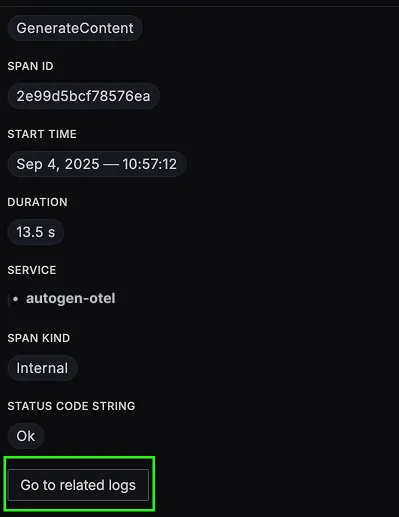
You should be able to view logs in Signoz Cloud under the logs tab. You can also view logs by clicking on the “Related Logs” button in the trace view to see correlated logs:

When you click on any of these logs in SigNoz, you'll see a detailed view of the log, including attributes:

You should be able to see AutoGen related metrics in Signoz Cloud under the metrics tab:

When you click on any of these metrics in SigNoz, you'll see a detailed view of the metric, including attributes:

Troubleshooting
If you don't see your telemetry data:
- Verify network connectivity - Ensure your application can reach SigNoz Cloud endpoints
- Check ingestion key - Verify your SigNoz ingestion key is correct
- Wait for data - OpenTelemetry batches data before sending, so wait 10-30 seconds after making API calls
- Try a console exporter — Enable a console exporter locally to confirm that your application is generating telemetry data before it’s sent to SigNoz
Next Steps
You can also check out our custom AutoGen dashboard here which provides specialized visualizations for monitoring your AutoGen usage in applications. The dashboard includes pre-built charts specifically tailored for LLM usage, along with import instructions to get started quickly.

Related integrations
Instrument the rest of your agent stack with the same OpenTelemetry pipeline:
- Monitor Agno agents with OpenTelemetry - trace agent runs, tool calls, and model requests across Agno teams and workflows
- Google ADK observability with OpenTelemetry - trace ADK agents, tools, and the model calls they make
- Semantic Kernel observability with OpenTelemetry - trace plugins, planners, and kernel function calls
- Monitor Pipecat voice agents with OpenTelemetry - trace pipeline latency across the STT, LLM, and TTS stages
- Monitor Claude Code with OpenTelemetry - track session token usage, cost per task, and API performance
Browse all LLM observability integrations to instrument the rest of your stack.


