Prerequisites
Before configuring a Webhook channel in SigNoz, ensure that you have:
-
Webhook Application: Have an application ready to accept webhook messages.
-
Webhook URL: Obtain a valid webhook URL reachable from SigNoz Alert Manager.
-
SigNoz Version: Ensure you are using SigNoz version Webhook v0.7.4 or later
Accessing Alert Channels
To manage your alert channels in SigNoz:
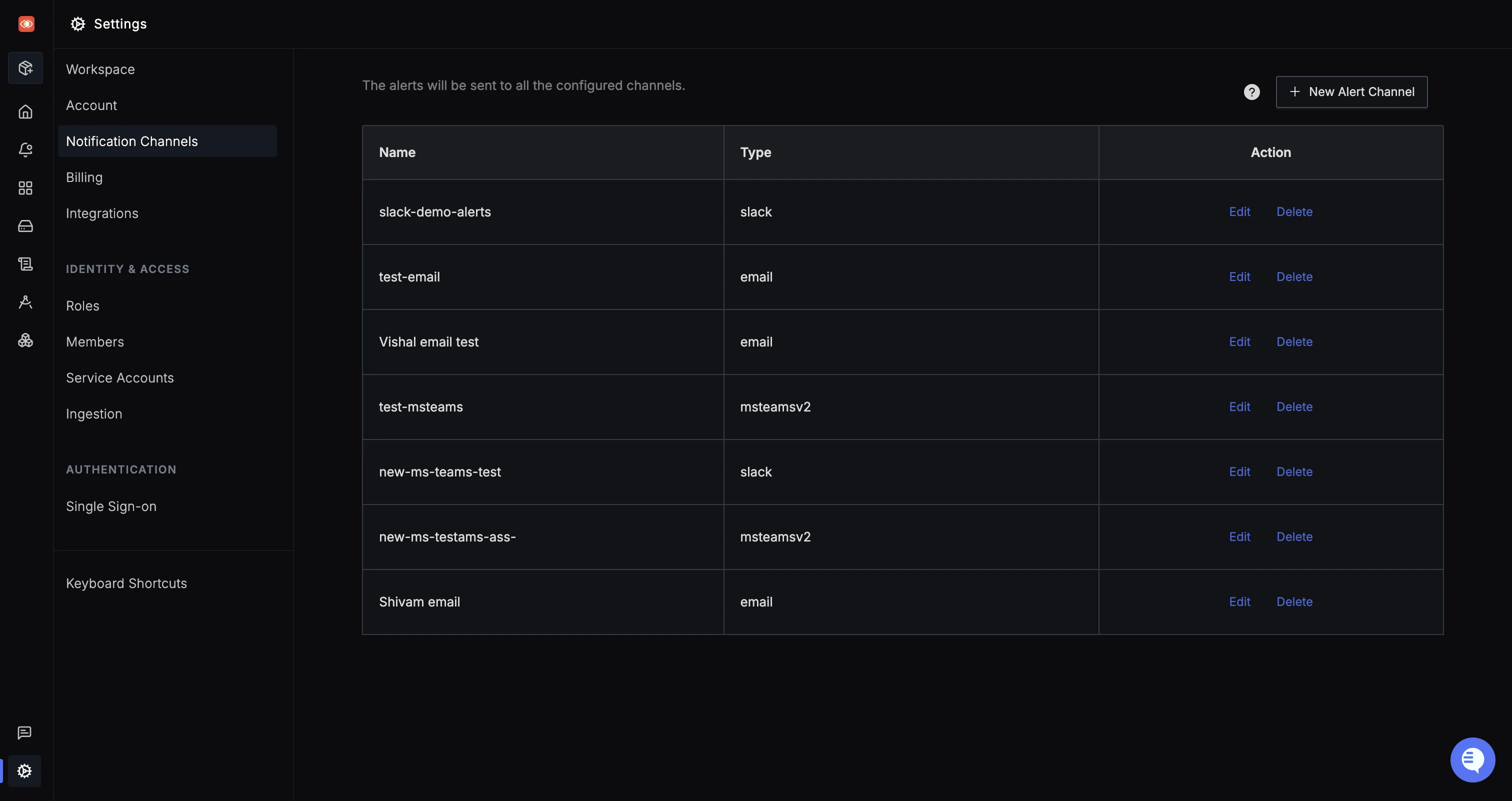
- Navigate to
Settings > Account Settings > Notification Channelstab within SigNoz. This tab displays a list of configured alert channels.
Creating a new Webhook channel
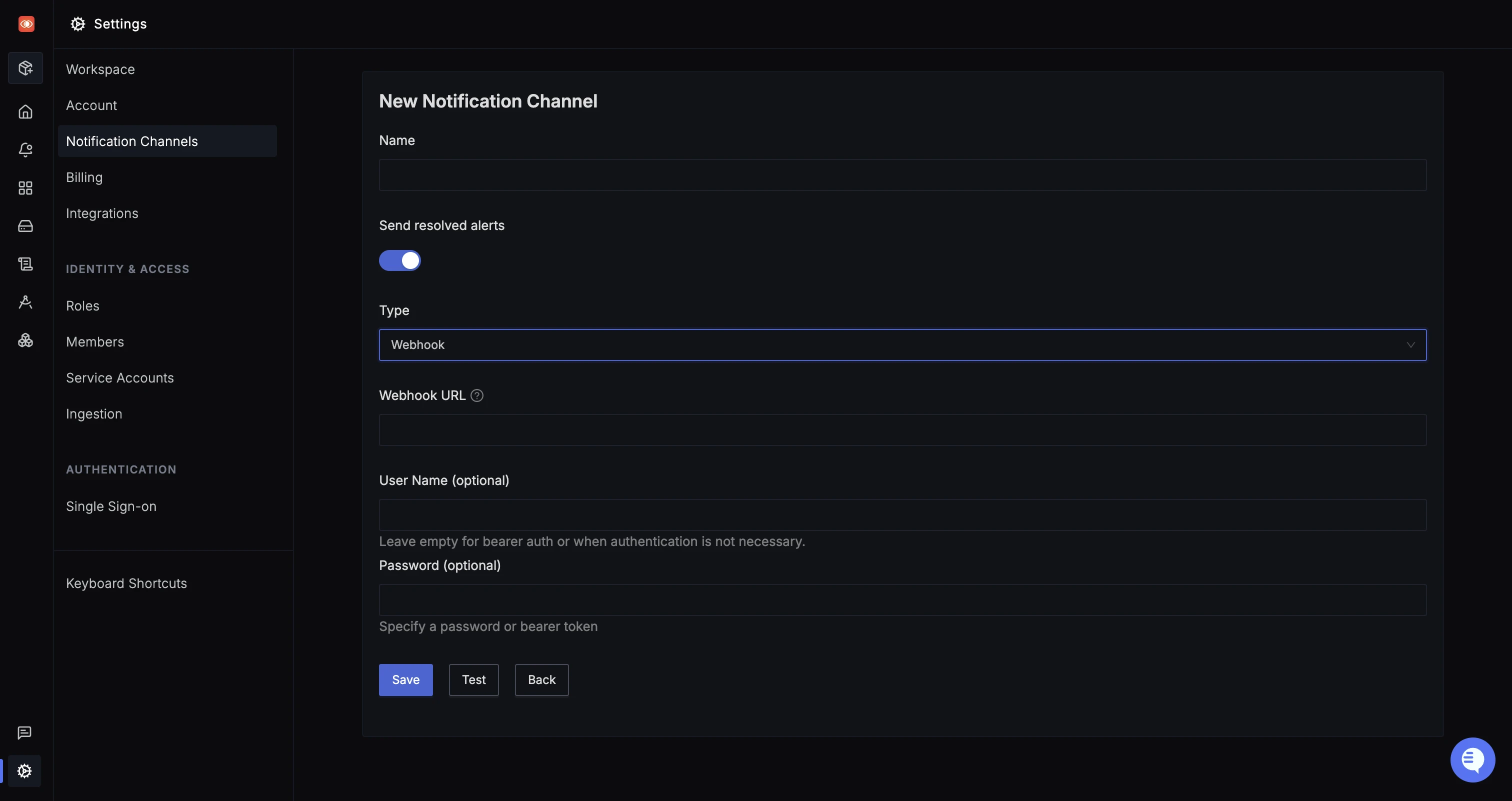
To create a new Webhook notification channel in SigNoz, follow these steps:
- Navigate to
Settings > Account Settings > Notification Channelsand click onNew Channel. - Enter a Name for the channel and select Webhook as the channel type.
- Webhook URL: Enter the Webhook URL endpoint.
- Username and Password (Optional): Provide the necessary credentials for authentication.
Test Configuration: Click the Test button to test the connection with your application.
Editing a Webhook channel
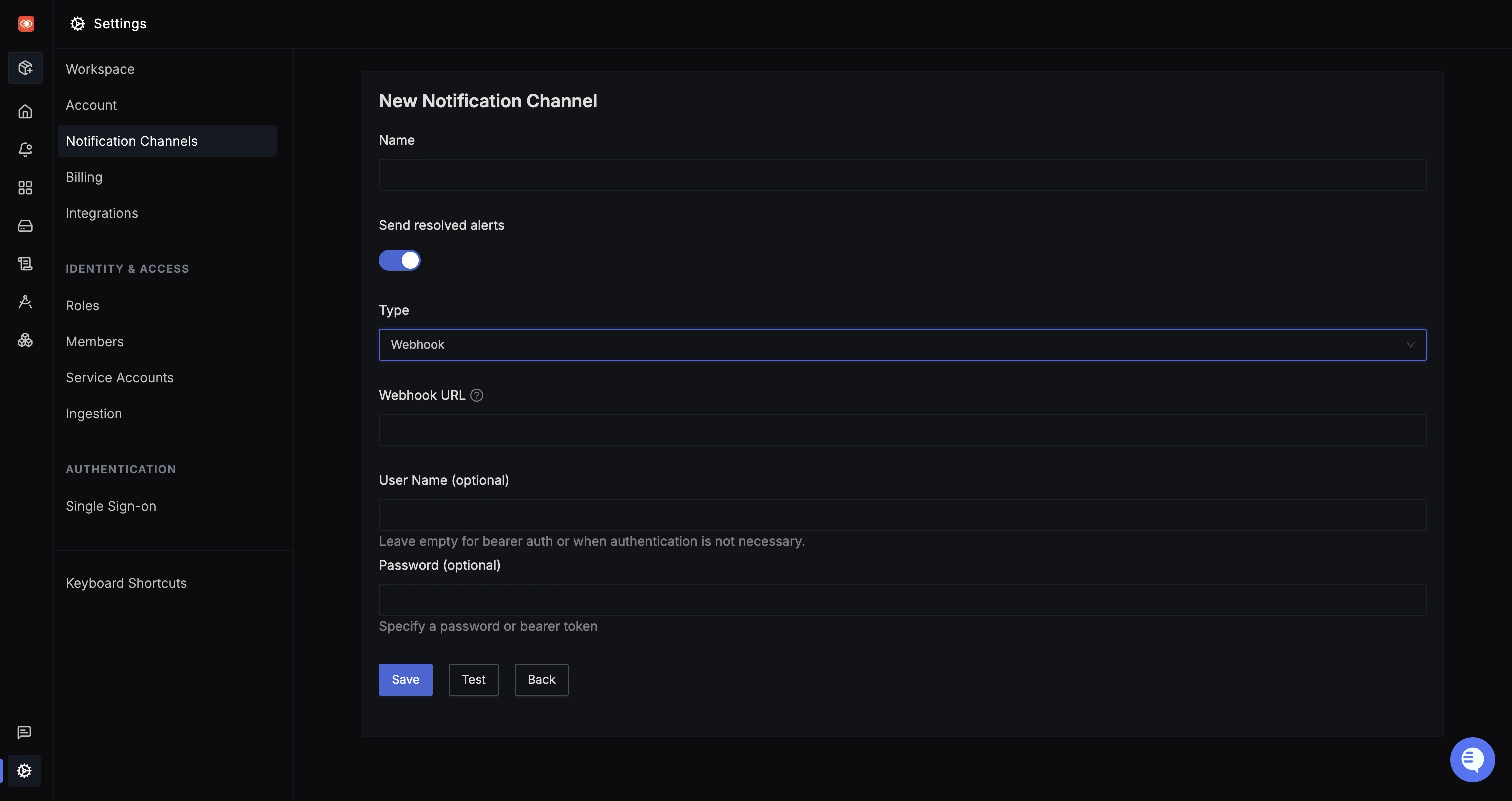
To edit an existing webhook notification channel:
- Navigate to the channel settings in SigNoz.
- You can edit the webhook URL and other parameters. However, note that the channel name and type are not editable after creation.
Receive Alert through Webhook
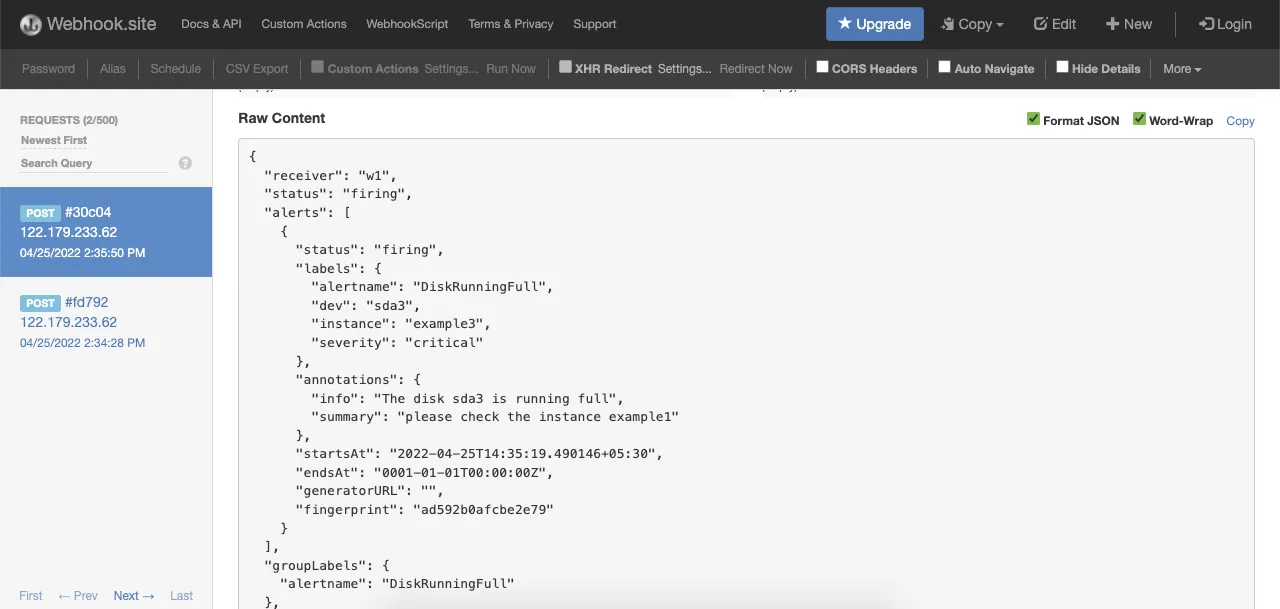
Once the configuration is set up correctly, you will receive alerts in your application through the configured Webhook channel whenever monitored metrics exceed the specified thresholds in alert rules.
Sample Webhook message
A webhook message may contain multiple alerts. By default, the SigNoz alert manager groups alerts by the alert name and delivers grouped messages every 5 minutes.
For resolved alerts, the alert manager will send the time of resolution in endsAt. You can also use the fingerprint property to identify and process updates sent by the alert manager.
{
   "receiver":"w1",
   "status":"firing",
   "alerts":[
      {
         "status":"firing",
         "labels":{
            "alertname":"DiskRunningFull",
            "dev":"sda3",
            "instance":"example3",
            "severity":"critical"
         },
         "annotations":{
            "info":"The disk sda3 is running full",
            "summary":"please check the instance example1"
         },
         "startsAt":"2022-04-25T14:35:19.490146+05:30",
         "endsAt":"0001-01-01T00:00:00Z",
         "generatorURL":"",
         "fingerprint":"ad592b0afcbe2e79"
      }
   ],
   "groupLabels":{
      "alertname":"DiskRunningFull"
   },
   "commonLabels":{
      "alertname":"DiskRunningFull",
      "dev":"sda3",
      "instance":"example3",
      "severity":"critical"
   },
   "commonAnnotations":{
      "info":"The disk sda3 is running full",
      "summary":"please check the instance example1"
   },
   "externalURL":"http://Apples-MacBook-Pro-3.local:9093",
   "version":"4",
   "groupKey":"{}/{}:{alertname=\"DiskRunningFull\"}",
   "truncatedAlerts":0
}
Turn-off Resolved alerts
The resolve alerts toggle is switched on by default. To turn-off receiveing the Resolved alerts for your Notification Channel, follow these steps:
- Navigate to
Settings > Account Settings > Notification Channels - Click on
Editbutton for a particular alert. - Toggle off the Send resolved alerts button and hit
Save.

Configure programmatically
You can also configure the Webhook notification channel programmatically using the SigNoz API.
API Endpoint: POST /api/v1/channels
To create a new Webhook notification channel, send a POST request to the /api/v1/channels endpoint with the following curl command. Replace YOUR_API_KEY with an API key from Settings → Service Accounts — see Service Accounts to create one.
curl 'YOUR_SIGNOZ_CLOUD_URL/api/v1/channels' \
  -H 'SIGNOZ-API-KEY: YOUR_API_KEY' \
  -H 'Content-Type: application/json' \
  --data-raw '{
    "name": "Prod Critical Alerts - Webhook",
    "webhook_configs": [
        {
            "send_resolved": true,
            "url": "https://webhook.site/d0c2ab8c-ffc0-49b1-a1d2-f1e328e3167f",
            "http_config": {
                "basic_auth": {
                    "username": "your_username",
                    "password": "your_password"
                }
            }
        }
    ]
}'
Request Body Attributes:
| Field | Type | Description |
|---|---|---|
name | string | The name of the receiver/channel. Required; must be unique in all the config. |
webhook_configs | array | List of webhook configurations. |
webhook_configs[].send_resolved | boolean | Whether to send notifications when an alert is resolved. Default: true. |
webhook_configs[].url | string | The Webhook URL endpoint. Mandatory. Must be a valid URL. |
webhook_configs[].http_config | object | HTTP configuration for the webhook, such as basic auth. |
webhook_configs[].http_config.basic_auth | object | Basic authentication credentials. |
webhook_configs[].http_config.basic_auth.username | string | Username for basic authentication. Leave empty for bearer auth or when authentication is not necessary. |
webhook_configs[].http_config.basic_auth.password | string | Password for basic authentication. Specify a password or bearer token. |
Integrating with Incident.io, Rootly and Zenduty and more
You can integrate with Incident.io, Rootly and Zenduty and more by following the links below:
My incident management tool is not listed, can I still integrate?
Yes, you can integrate with any tool that supports Prometheus Alertmanager webhook integration.
- On the tool you want to integrate with, check if they have a Prometheus Alertmanager integration.
- If they do, follow the steps to create webhook URL and secret.
- Copy the webhook URL and use it in the SigNoz Alertmanager webhook integration.
- (if applicable) Copy the secret and use it in the SigNoz Channel password field (leave the username empty).
- On SigNoz, Click on the "Test" button to test the integration.
Troubleshooting
If you encounter issues:
-
Check the Webhook URL: Ensure the webhook URL is correctly entered in SigNoz.
-
Verify Webhook Permissions: Confirm that the webhook has permissions to post alerts to the desired endpoint.


