Overview
In many logging setups, the raw log is delivered as a JSON string, often placed in the body field. Within this JSON, you might have important fields like ContainerName that you want to promote to a standard resource field such as service.name. Additionally, you may want to extract only the log message to appear in the top‐level body.
Example Log
Throughout this guide, we’ll reference the following example log entry:
{
  "timestamp": "2025-01-25T10:00:00Z",
  "body": "{ \"properties\": { \"Log\": \"Connection refused\", \"ContainerName\": \"my-awesome-app\" }, \"host\": \"azure-vm-123\" }",
  "resource": {
    "service.name": "",
    "cloud.provider": "azure"
  }
}
- The
bodyfield contains a JSON string with fields likeLogandContainerName. resource.service.nameis initially empty. We’ll mapContainerNameto this field.timestamp,host, and any other fields can remain as is or be used however you like.
Desired Outcome
By the end of this guide, we want to:
- Parse the JSON string in
bodyinto structured fields underattributes. - Move the
Logfield from attributes to the top‐levelbody. - Set
resource.service.nameto the value ofContainerName.
Here’s how the log should look after we apply our pipeline transformations:
{
  "timestamp": "2025-01-25T10:00:00Z",
  "body": "Connection refused",
  "attributes": {
    "properties": {
      "ContainerName": "my-awesome-app"
    },
    "host": "azure-vm-123"
  },
  "resource": {
    "service.name": "my-awesome-app",
    "cloud.provider": "azure"
  }
}
Steps to Parse the JSON and Set Resource Name
We’ll use three processors in SigNoz Logs Pipeline to transform the example log into the desired format:
- JSON Parser – Convert the JSON in
bodyinto structured fields underattributes. - Move Processor – Move the
Logfield from the parsed JSON intobody. - Move Processor – Map
ContainerNametoresource.service.name.
Let’s walk through each step in detail.
Step 1. JSON Parser – Convert JSON in body to Structured Attributes
Our first step is to parse the raw JSON string residing in the body field so we can work with its fields directly (e.g., Log, ContainerName) under attributes.
Before Parsing
{
  "timestamp": "2025-01-25T10:00:00Z",
  "body": "{ \"properties\": { \"Log\": \"Connection refused\", \"ContainerName\": \"my-awesome-app\" }, \"host\": \"azure-vm-123\" }",
  "resource": {
    "service.name": "",
    "cloud.provider": "azure"
  }
}
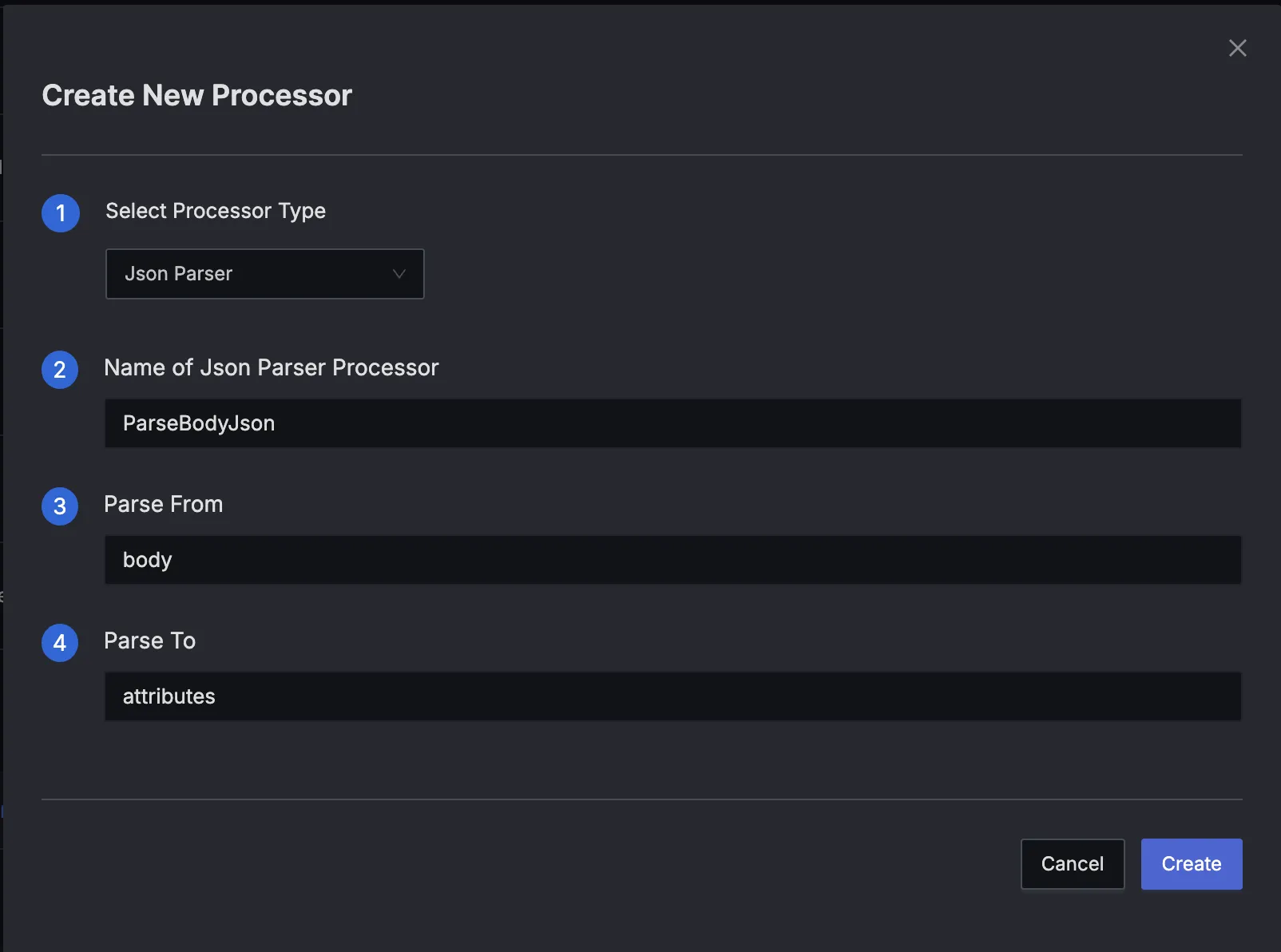
Processor Configuration
- type: json_parser
  name: ParseBodyJson
  parse_from: body
  parse_to: attributes
After Parsing
{
  "timestamp": "2025-01-25T10:00:00Z",
  "body": "{ \"properties\": { \"Log\": \"Connection refused\", \"ContainerName\": \"my-awesome-app\" }, \"host\": \"azure-vm-123\" }",
  "attributes": {
    "properties": {
      "Log": "Connection refused",
      "ContainerName": "my-awesome-app"
    },
    "host": "azure-vm-123"
  },
  "resource": {
    "service.name": "",
    "cloud.provider": "azure"
  }
}
Key Observations:
- Fields like
LogandContainerNameare now accessible inattributes.properties. - The original
bodyfield still holds the raw JSON string. If you don’t need it, you can remove or overwrite it in a later step.
Step 2. Move Processor – Extract the Log Field to body
Now that Log is available at attributes.properties.Log, we can move it to the top‐level body to clearly indicate that this is the main log message.
Before Moving Log
{
  "timestamp": "2025-01-25T10:00:00Z",
  "body": "{ \"properties\": { \"Log\": \"Connection refused\", \"ContainerName\": \"my-awesome-app\" }, \"host\": \"azure-vm-123\" }",
  "attributes": {
    "properties": {
      "Log": "Connection refused",
      "ContainerName": "my-awesome-app"
    },
    "host": "azure-vm-123"
  },
  "resource": {
    "service.name": "",
    "cloud.provider": "azure"
  }
}
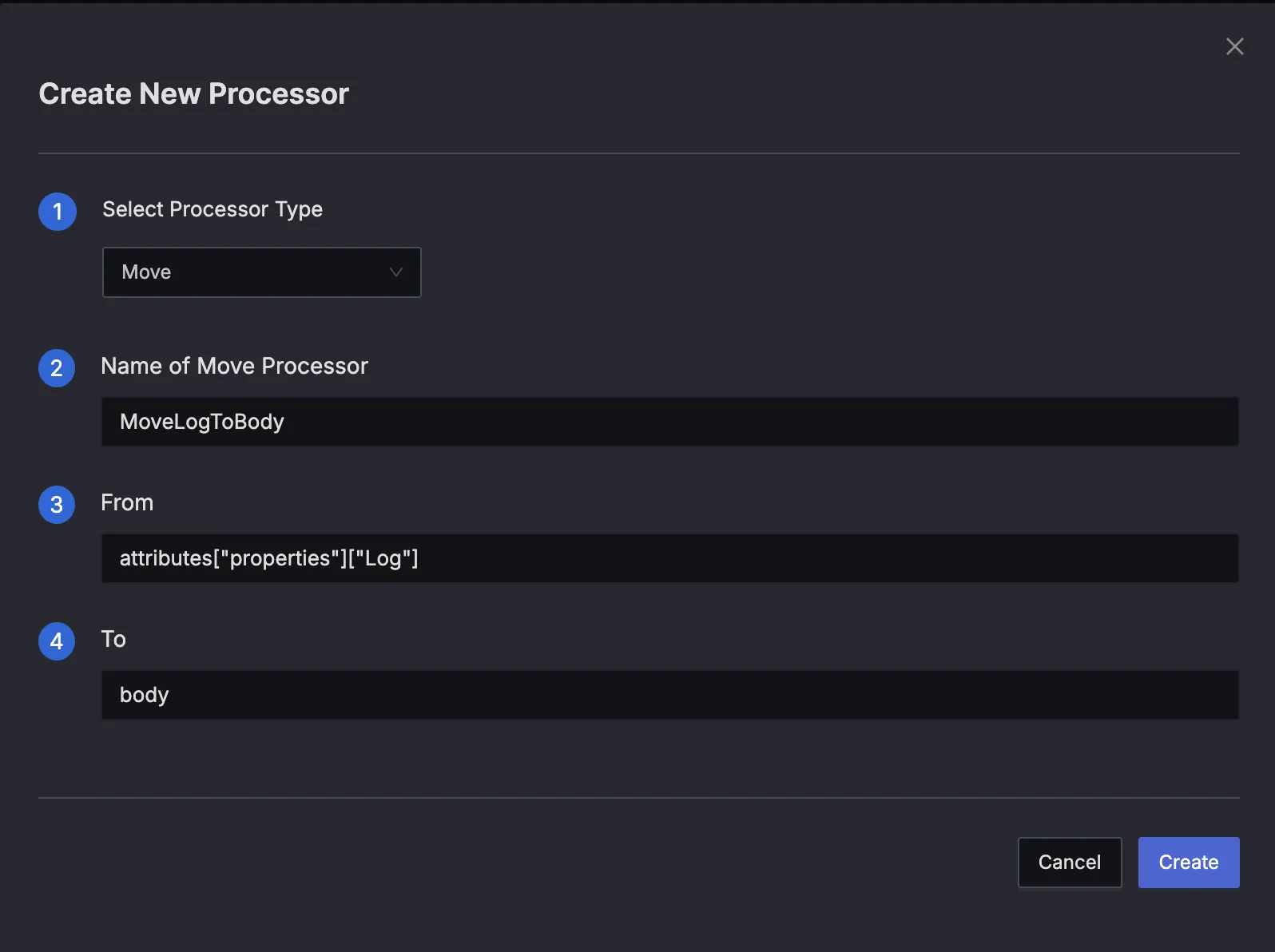
Processor Configuration
- type: move
  name: MoveLogToBody
  from: attributes.properties.Log
  to: body
After Moving Log
{
  "timestamp": "2025-01-25T10:00:00Z",
  "body": "Connection refused",
  "attributes": {
    "properties": {
      "ContainerName": "my-awesome-app"
    },
    "host": "azure-vm-123"
  },
  "resource": {
    "service.name": "",
    "cloud.provider": "azure"
  }
}
Key Observations:
- The value of
Logis now the main log message inbody. attributes.properties.Loghas been removed because of the Move operation (it transfers data rather than copying).- Other fields (
ContainerName,host) remain intact in attributes.
Step 3. Move Processor – Map ContainerName to resource.service.name
Finally, we want to set the resource.service.name field to the value of ContainerName from our parsed JSON. This ensures that all logs from this container are associated with the correct service.
Before Mapping ContainerName
{
  "timestamp": "2025-01-25T10:00:00Z",
  "body": "Connection refused",
  "attributes": {
    "properties": {
      "ContainerName": "my-awesome-app"
    },
    "host": "azure-vm-123"
  },
  "resource": {
    "service.name": "",
    "cloud.provider": "azure"
  }
}
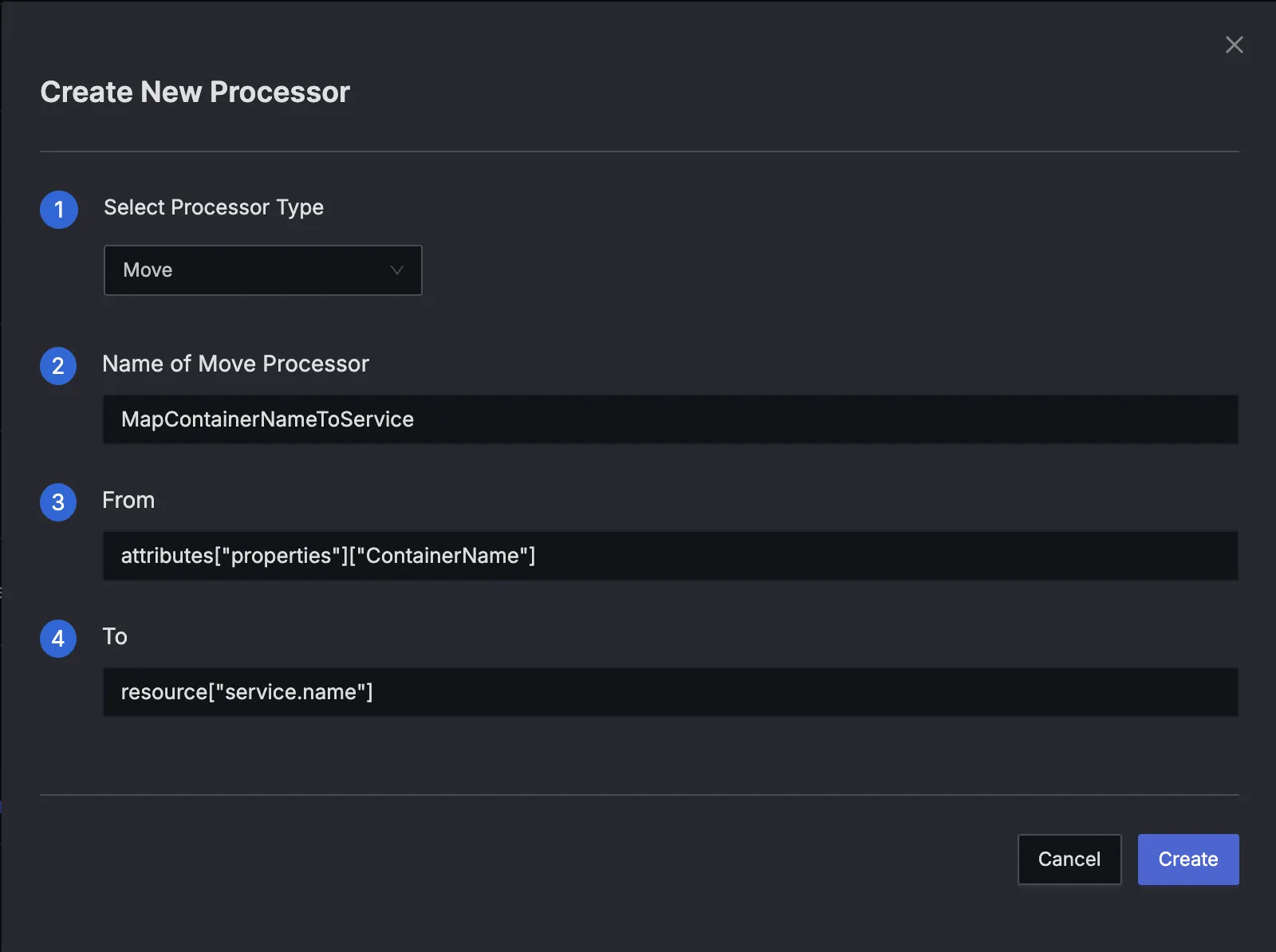
Processor Configuration
- type: move
  name: MapContainerNameToService
  from: attributes.properties.ContainerName
  to: resource.service.name
After Moving ContainerName
{
  "timestamp": "2025-01-25T10:00:00Z",
  "body": "Connection refused",
  "attributes": {
    "properties": {
      // "ContainerName" was moved, so it is removed
    },
    "host": "azure-vm-123"
  },
  "resource": {
    "service.name": "my-awesome-app",
    "cloud.provider": "azure"
  }
}
Key Observations:
resource.service.nameis now set to"my-awesome-app".ContainerNameis removed fromattributes.properties, as the Move operation transfers the value (rather than copying it).
Final Outcome
After applying these three processors in sequence, your log now looks like this:
{
  "timestamp": "2025-01-25T10:00:00Z",
  "body": "Connection refused",
  "attributes": {
    "properties": {
      // ContainerName was moved to resource.service.name
    },
    "host": "azure-vm-123"
  },
  "resource": {
    "service.name": "my-awesome-app",
    "cloud.provider": "azure"
  }
}
With these steps, you’ve:
- Promoted the main log message (
Log) to thebodyfield. - Mapped the container name to the standard OpenTelemetry field:
resource.service.name. - Preserved other fields (like
host) underattributesfor additional context.
Optional Cleanup and Further Customizations
Depending on your use case, you might want to perform additional cleanup or restructuring of your logs. Here are a few ideas:
- Remove the Raw
bodyField
If you no longer need the original raw JSON in the top‐levelbody, you can use a Delete processor:
- type: delete
  name: RemoveRawBody
  field: body
This is often helpful if you’re storing logs long-term and don’t want redundant data.
- Rename or Move Other Fields
Suppose you want to renamehostto something likeattributes.node.host. You could add another Move processor:
- type: move
  name: RenameHostField
  from: attributes.host
  to: attributes.node.host
This helps keep your logs organized under a consistent naming structure.
- Parse Nested JSON Fields Repeatedly
If you have deeper nested JSON structures (for example,attributes.properties.configbeing another JSON string), you can parse them again:
- type: json_parser
  name: ParseNestedConfig
  parse_from: attributes.properties.config
  parse_to: attributes.properties.config
This enables you to break down complex, deeply nested log data into fully structured fields.
- Apply Conditional Logic
If you only want to run certain processors on logs that meet specific criteria (e.g., logs with a certainhostvalue), you can use pipeline filters. For example:
pipeline:
  - filter:
      match: attributes.host == "azure-vm-123"
    processors:
      - type: move
        name: HostToAttributes
        from: attributes.host
        to: attributes.azure_host
By combining these ideas, you can shape your logs into any structure you need, ensuring the most important fields are surfaced at the top and extraneous data is removed (or reorganized) to fit your observability needs.


