How do I find the trace behind an error log?
An error log’s trace_id link opens the matching request trace in SigNoz Cloud when both the log and trace are available there. The shared ID takes you from the error message to the recorded calls behind that failure.
Follow the request into its trace
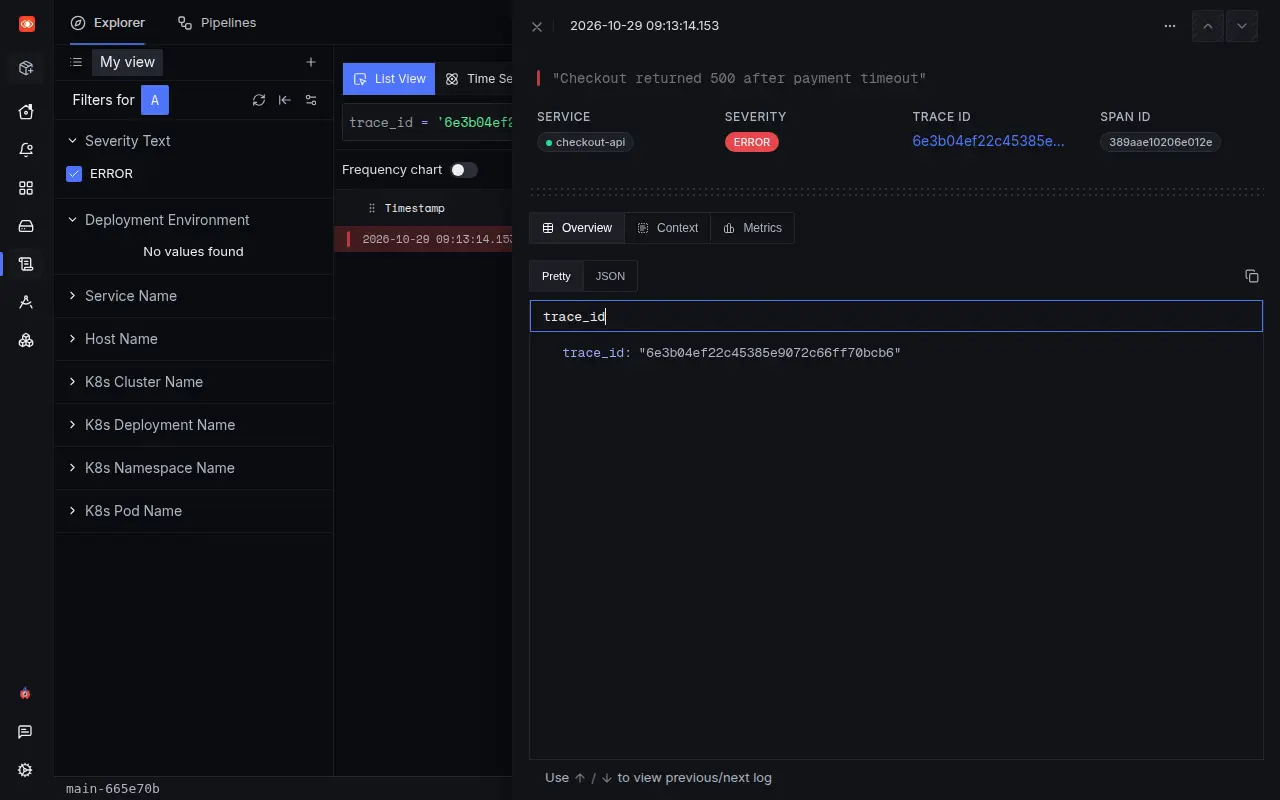
For this example, we sent sample logs and spans for a checkout service called checkout-api that calls payment-service to charge a card. The services share the request’s trace ID, which connects their operations. When the payment times out, checkout logs Checkout returned 500 after payment timeout.
Open that error log in Logs Explorer and select its Trace ID link. The ID connects the log to a particular request, even when many requests use the same service at the same time.
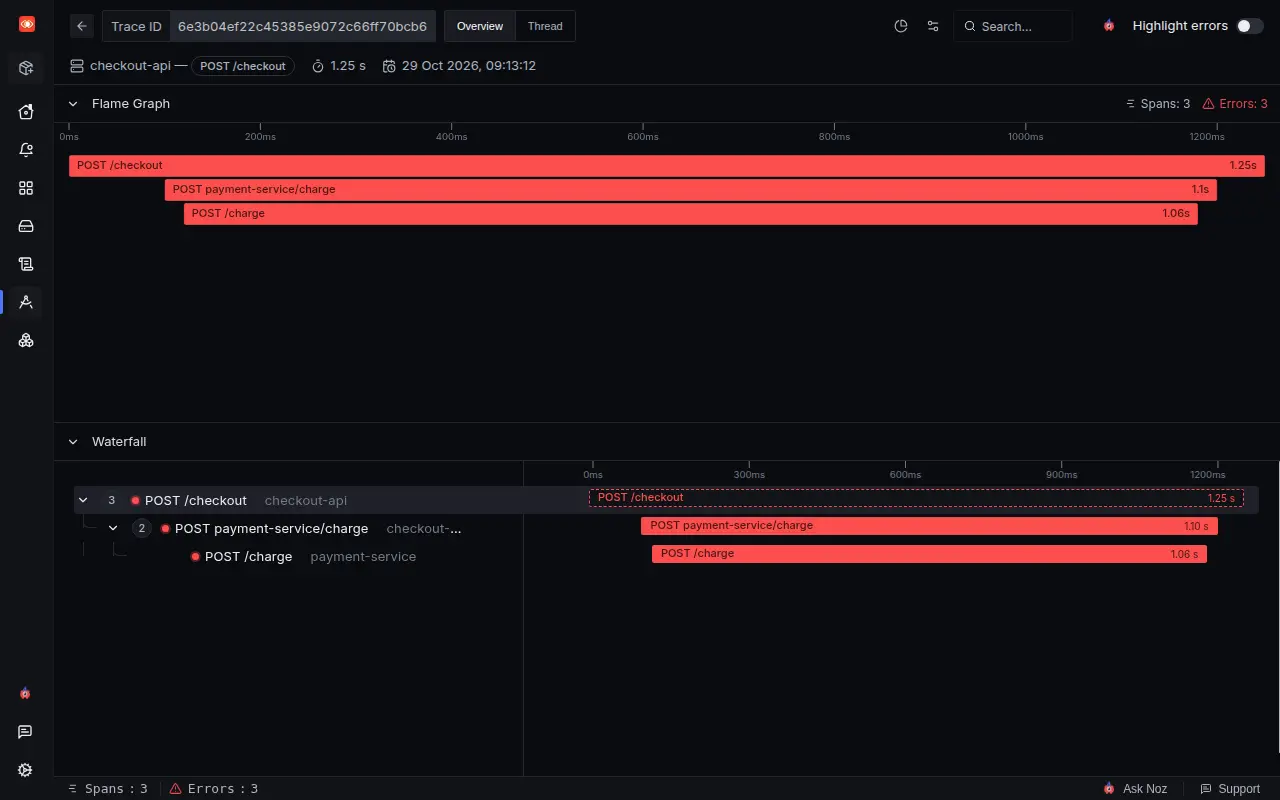
The trace shows the checkout operation, its call to the payment service, and the failed payment operation. Each recorded operation is a span. The log’s span_id identifies the operation that wrote it; the trace link opens the wider request.
Select the failed payment span and open its Logs tab to find related logs. The tab shows the checkout error and highlights Payment provider timed out for the selected span.

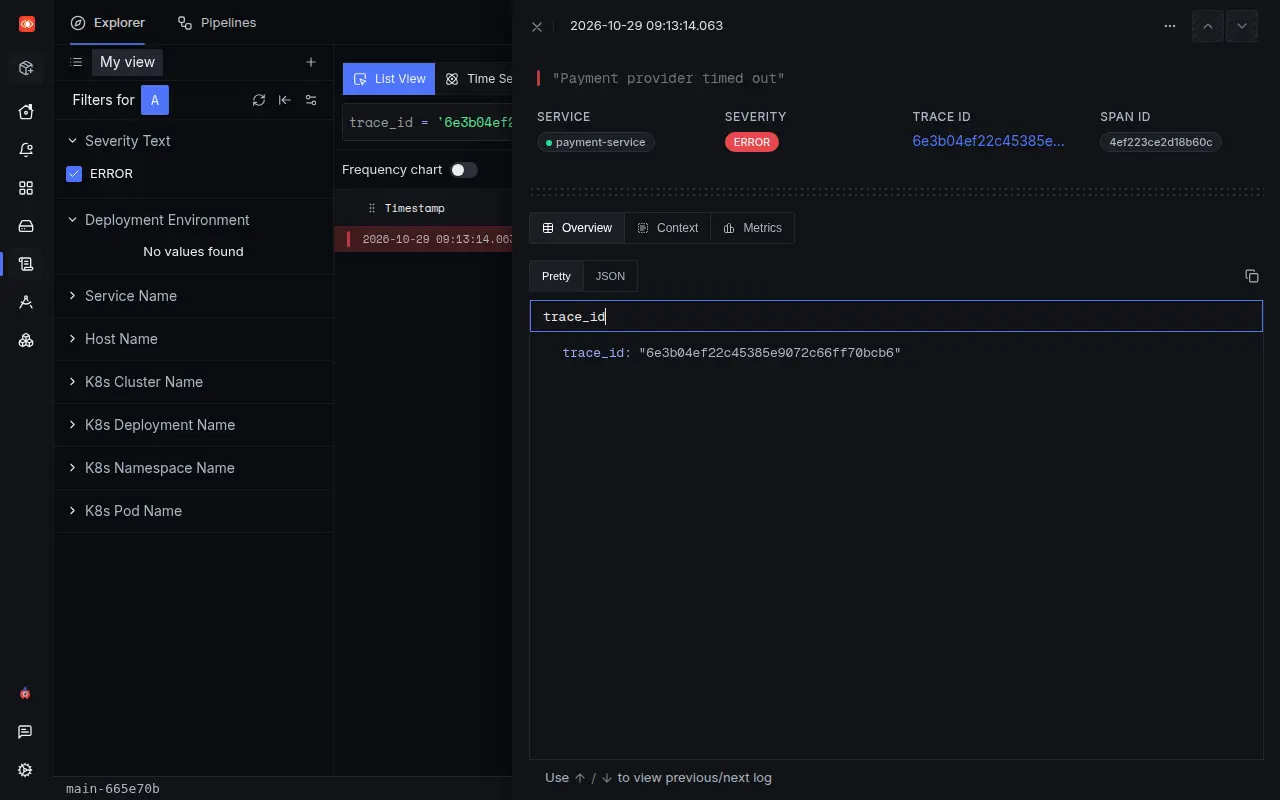
Select Payment provider timed out to open it in Logs Explorer. The result shows the error record with its trace ID and payment span ID.
Use the logs and traces correlation guide for your language to configure your logging library to record the current request’s trace ID. The logs and traces must be collected in SigNoz Cloud for this workflow, since it cannot join records kept only in separate tools.
If the trace does not open
If the log has no trace ID link, check whether the ID is stored in its message or a custom attribute. For incoming logs, the Trace Parser can map an existing ID into the standard trace field. It cannot recover an ID that was never recorded.
If the ID is present, search the same trace_id in Traces Explorer with a time range that includes the request. Use List View with All Spans to check for collected spans.
If no trace is available, check whether your application successfully exported it. Sampling rules can keep only some request traces and exclude the one you need. Also check your trace retention period. A log can keep its trace ID after the trace is no longer available; the ID alone cannot recreate that trace.


