What is LiteLLM Observability?
LiteLLM observability with OpenTelemetry gives you full visibility into your LiteLLM SDK and Proxy Server by capturing traces, logs, and metrics. This guide covers how to instrument LiteLLM and export telemetry data to SigNoz, enabling real-time visibility into model performance, request/response details, latency, error rates, and usage trends.
With full LiteLLM observability in SigNoz, you can correlate traces, logs, and metrics in unified dashboards and configure alerts for LiteLLM monitoring. This makes it easier to debug issues, optimize performance, and improve reliability across your AI workflows.
Prerequisites
- A SigNoz Cloud account with an active ingestion key
- Internet access to send telemetry data to SigNoz Cloud
- LiteLLM SDK or Proxy integration
- For Python:
pipinstalled for managing Python packages and (optional but recommended) a Python virtual environment to isolate dependencies
Instrumenting LiteLLM with OpenTelemetry
LiteLLM can be monitored in two ways: using the LiteLLM SDK (directly embedded in your Python application code for programmatic LLM calls) or the LiteLLM Proxy Server (a standalone server that acts as a centralized gateway for managing and routing LLM requests across your infrastructure).
For more detailed info on instrumenting your LiteLLM SDK applications, see the LiteLLM OpenTelemetry integration docs.
No-code auto-instrumentation is recommended for quick setup with minimal code changes. It's ideal when you want to get observability up and running without modifying your application code and are leveraging standard instrumentor libraries.
Step 1: Install the necessary packages in your Python environment.
pip install \
  opentelemetry-api \
  opentelemetry-distro \
  opentelemetry-exporter-otlp \
  httpx \
  opentelemetry-instrumentation-httpx \
  litellm
Step 2: Add Automatic Instrumentation
opentelemetry-bootstrap --action=installStep 3: Instrument your LiteLLM SDK application
Initialize LiteLLM SDK instrumentation by calling litellm.callbacks = ["otel"]:
from litellm import litellm

litellm.callbacks = ["otel"]
This call enables automatic tracing, logs, and metrics collection for all LiteLLM SDK calls in your application.
📌 Note: Ensure this is called before any LiteLLM related calls to properly configure instrumentation of your application
Step 4: Run an example
from litellm import completion, litellm

litellm.callbacks = ["otel"]

response = completion(
  model="openai/gpt-4o",
  messages=[{ "content": "What is SigNoz","role": "user"}]
)

print(response)
📌 Note: LiteLLM supports a variety of model providers for LLMs. In this example, we're using OpenAI. Before running this code, ensure that you have set the environment variable
OPENAI_API_KEYwith your generated API key.
Step 5: Run your application with auto-instrumentation
OTEL_RESOURCE_ATTRIBUTES="service.name=<service_name>" \
OTEL_EXPORTER_OTLP_ENDPOINT="https://ingest.<region>.signoz.cloud:443" \
OTEL_EXPORTER_OTLP_HEADERS="signoz-ingestion-key=<your-ingestion-key>" \
OTEL_EXPORTER_OTLP_PROTOCOL=grpc \
OTEL_TRACES_EXPORTER=otlp \
OTEL_METRICS_EXPORTER=otlp \
OTEL_LOGS_EXPORTER=otlp \
OTEL_PYTHON_LOG_CORRELATION=true \
OTEL_PYTHON_LOGGING_AUTO_INSTRUMENTATION_ENABLED=true \
OTEL_PYTHON_DISABLED_INSTRUMENTATIONS=openai \
opentelemetry-instrument <your_run_command>
📌 Note: We're using
OTEL_PYTHON_DISABLED_INSTRUMENTATIONS=openaiin the run command to disable the OpenAI instrumentor for tracing. This avoids conflicts with LiteLLM's native telemetry/instrumentation, ensuring that telemetry is captured exclusively through LiteLLM's built-in instrumentation.
<service_name>is the name of your service<region>: Your SigNoz Cloud region<your-ingestion-key>: Your SigNoz ingestion key- Replace
<your_run_command>with the actual command you would use to run your application. For example:python main.py
Code-based instrumentation gives you fine-grained control over your telemetry configuration. Use this approach when you need to customize resource attributes, sampling strategies, or integrate with existing observability infrastructure.
Step 1: Install the necessary packages in your Python environment.
pip install \
  opentelemetry-api \
  opentelemetry-sdk \
  opentelemetry-exporter-otlp \
  opentelemetry-instrumentation-httpx \
  opentelemetry-instrumentation-system-metrics \
  litellm
Step 2: Import the necessary modules in your Python application
Traces:
from opentelemetry import trace
from opentelemetry.sdk.resources import Resource
from opentelemetry.sdk.trace import TracerProvider
from opentelemetry.sdk.trace.export import BatchSpanProcessor
from opentelemetry.exporter.otlp.proto.http.trace_exporter import OTLPSpanExporter
Logs:
from opentelemetry.sdk._logs import LoggerProvider, LoggingHandler
from opentelemetry.sdk._logs.export import BatchLogRecordProcessor
from opentelemetry.exporter.otlp.proto.http._log_exporter import OTLPLogExporter
from opentelemetry._logs import set_logger_provider
import logging
Metrics:
from opentelemetry.sdk.metrics import MeterProvider
from opentelemetry.exporter.otlp.proto.http.metric_exporter import OTLPMetricExporter
from opentelemetry.sdk.metrics.export import PeriodicExportingMetricReader
from opentelemetry import metrics
from opentelemetry.instrumentation.system_metrics import SystemMetricsInstrumentor
from opentelemetry.instrumentation.httpx import HTTPXClientInstrumentor
Step 3: Set up the OpenTelemetry Tracer Provider to send traces directly to SigNoz Cloud
from opentelemetry.sdk.resources import Resource
from opentelemetry.sdk.trace import TracerProvider
from opentelemetry.sdk.trace.export import BatchSpanProcessor
from opentelemetry.exporter.otlp.proto.http.trace_exporter import OTLPSpanExporter
from opentelemetry import trace
import os

resource = Resource.create({"service.name": "<service_name>"})
provider = TracerProvider(resource=resource)
span_exporter = OTLPSpanExporter(
    endpoint= os.getenv("OTEL_EXPORTER_TRACES_ENDPOINT"),
    headers={"signoz-ingestion-key": os.getenv("SIGNOZ_INGESTION_KEY")},
)
processor = BatchSpanProcessor(span_exporter)
provider.add_span_processor(processor)
trace.set_tracer_provider(provider)<service_name>is the name of your serviceOTEL_EXPORTER_TRACES_ENDPOINT→ SigNoz Cloud trace endpoint with appropriate region:https://ingest.<region>.signoz.cloud:443/v1/tracesSIGNOZ_INGESTION_KEY→ Your SigNoz ingestion key
Step 4: Setup Logs
import logging
from opentelemetry.sdk.resources import Resource
from opentelemetry._logs import set_logger_provider
from opentelemetry.sdk._logs import LoggerProvider, LoggingHandler
from opentelemetry.sdk._logs.export import BatchLogRecordProcessor
from opentelemetry.exporter.otlp.proto.http._log_exporter import OTLPLogExporter
import os

resource = Resource.create({"service.name": "<service_name>"})
logger_provider = LoggerProvider(resource=resource)
set_logger_provider(logger_provider)

otlp_log_exporter = OTLPLogExporter(
    endpoint= os.getenv("OTEL_EXPORTER_LOGS_ENDPOINT"),
    headers={"signoz-ingestion-key": os.getenv("SIGNOZ_INGESTION_KEY")},
)
logger_provider.add_log_record_processor(
    BatchLogRecordProcessor(otlp_log_exporter)
)
# Attach OTel logging handler to root logger
handler = LoggingHandler(level=logging.INFO, logger_provider=logger_provider)
logging.basicConfig(level=logging.INFO, handlers=[handler])

logger = logging.getLogger(__name__)<service_name>is the name of your serviceOTEL_EXPORTER_LOGS_ENDPOINT→ SigNoz Cloud endpoint with appropriate region:https://ingest.<region>.signoz.cloud:443/v1/logsSIGNOZ_INGESTION_KEY→ Your SigNoz ingestion key
Step 5: Setup Metrics
from opentelemetry.sdk.resources import Resource
from opentelemetry.sdk.metrics import MeterProvider
from opentelemetry.exporter.otlp.proto.http.metric_exporter import OTLPMetricExporter
from opentelemetry.sdk.metrics.export import PeriodicExportingMetricReader
from opentelemetry import metrics
from opentelemetry.instrumentation.system_metrics import SystemMetricsInstrumentor
from opentelemetry.instrumentation.httpx import HTTPXClientInstrumentor
import os

resource = Resource.create({"service.name": "<service-name>"})
metric_exporter = OTLPMetricExporter(
    endpoint= os.getenv("OTEL_EXPORTER_METRICS_ENDPOINT"),
    headers={"signoz-ingestion-key": os.getenv("SIGNOZ_INGESTION_KEY")},
)
reader = PeriodicExportingMetricReader(metric_exporter)
metric_provider = MeterProvider(metric_readers=[reader], resource=resource)
metrics.set_meter_provider(metric_provider)

meter = metrics.get_meter(__name__)

# turn on out-of-the-box metrics
SystemMetricsInstrumentor().instrument()
HTTPXClientInstrumentor().instrument()<service_name>is the name of your serviceOTEL_EXPORTER_METRICS_ENDPOINT→ SigNoz Cloud endpoint with appropriate region:https://ingest.<region>.signoz.cloud:443/v1/metricsSIGNOZ_INGESTION_KEY→ Your SigNoz ingestion key
📌 Note: SystemMetricsInstrumentor provides system metrics (CPU, memory, etc.), and HTTPXClientInstrumentor provides outbound HTTP request metrics such as request duration. If you want to add custom metrics to your LiteLLM application, see Python Custom Metrics.
Step 6: Instrument your LiteLLM application
Initialize LiteLLM SDK instrumentation by calling litellm.callbacks = ["otel"]:
from litellm import litellm

litellm.callbacks = ["otel"]
This call enables automatic tracing, logs, and metrics collection for all LiteLLM SDK calls in your application.
📌 Note: Ensure this is called before any LiteLLM related calls to properly configure instrumentation of your application
Step 7: Run an example
from litellm import completion, litellm

litellm.callbacks = ["otel"]

response = completion(
  model="openai/gpt-4o",
  messages=[{ "content": "What is SigNoz","role": "user"}]
)

print(response)
📌 Note: LiteLLM supports a variety of model providers for LLMs. In this example, we're using OpenAI. Before running this code, ensure that you have set the environment variable
OPENAI_API_KEYwith your generated API key.
View LiteLLM Traces, Logs, and Metrics in SigNoz
Once configured, your LiteLLM application automatically emits traces, logs, and metrics.
LiteLLM traces are available in SigNoz under the traces tab:

When you click on a trace in SigNoz, you'll see a detailed view of the trace, including all associated spans, along with their events and attributes.

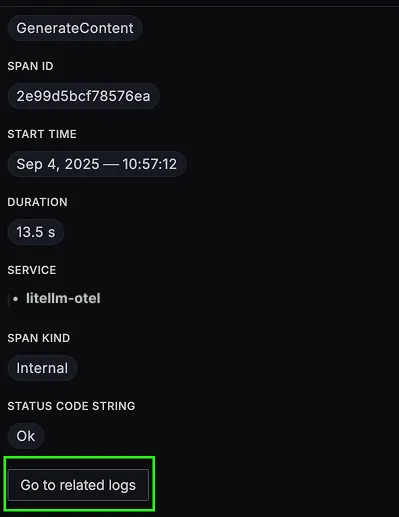
LiteLLM logs are available in SigNoz under the logs tab. You can also view correlated logs by clicking the “Related Logs” button in the trace view:

When you click on any of these logs in SigNoz, you'll see a detailed view of the log, including attributes:

LiteLLM metrics are available in SigNoz under the metrics tab:

When you click on any of these metrics in SigNoz, you'll see a detailed view of the metric, including attributes:

LiteLLM SDK Observability Dashboard
The LiteLLM SDK Dashboard provides specialized visualizations for LiteLLM monitoring, including pre-built charts for LLM usage and import instructions to get started quickly.

Step 1: Install the necessary packages in your Python environment.
pip install opentelemetry-api \
  opentelemetry-sdk \
  opentelemetry-exporter-otlp \
  'litellm[proxy]'
Step 2: Configure otel for the LiteLLM Proxy Server
Add the following to config.yaml:
litellm_settings:
  callbacks: ['otel']
Step 3: Set the following environment variables:
export OTEL_EXPORTER_OTLP_ENDPOINT="https://ingest.<region>.signoz.cloud:443"
export OTEL_EXPORTER_OTLP_HEADERS="signoz-ingestion-key=<your-ingestion-key>"
export OTEL_EXPORTER_OTLP_PROTOCOL="grpc"
export OTEL_TRACES_EXPORTER="otlp"
export OTEL_METRICS_EXPORTER="otlp"
export OTEL_LOGS_EXPORTER="otlp"<region>: Your SigNoz Cloud region<your-ingestion-key>: Your SigNoz ingestion key
Step 4: Run the proxy server using the config file:
litellm --config config.yamlNow any calls made through your LiteLLM proxy server will be traced and sent to SigNoz.
LiteLLM Proxy traces are available in SigNoz under the traces tab:

When you click on a trace in SigNoz, you'll see a detailed view of the trace, including all associated spans, along with their events and attributes.

LiteLLM Proxy Dashboard
The LiteLLM Proxy Dashboard provides specialized visualizations for LiteLLM Proxy monitoring, including pre-built charts for LLM usage and import instructions to get started quickly.

Related integrations
Trace what sits on either side of your gateway, from the providers behind it to the apps in front:
- OpenRouter observability with OpenTelemetry - trace routed model calls and compare cost across providers
- Monitor Amazon Bedrock with OpenTelemetry - track invocation latency, token usage, and error rates across Bedrock foundation models
- Monitor Azure OpenAI with OpenTelemetry - track deployment latency, token consumption, and quota errors
- Monitor DeepSeek with OpenTelemetry - track DeepSeek model latency, token usage, and error rates
- Monitor Cohere with OpenTelemetry - trace Chat, Embed, and Rerank calls with per-call token usage
Browse all LLM observability integrations to instrument the rest of your stack.


