Overview
By default, only the signoz-admin role can create service accounts and API keys, so viewers must ask an admin for every key. In this tutorial you'll set up a self-service flow that lets viewers generate their own read-only API keys — without granting them broad permissions.
What you'll do:
- Create a single read-only viewer service account.
- Build a scoped custom role that lets viewers add a key to that account only.
- Assign the role to viewers by invite or SSO.
- Have a viewer generate and validate their own API key.
Prerequisites
Before you start, make sure you have:
- An active SigNoz license.
- The
signoz-adminrole (role assignment is admin-only).
Step 1: Create the viewer service account
- Go to Settings > Service Accounts and click New Service Account.
- Name it (for example,
viewer-readonly) and click Create. - Open it, and in the Overview tab assign the
signoz-viewerrole, then click Save. This makes every key under this account read-only. - Copy the service account ID from the Overview tab — you'll need it in Step 2.
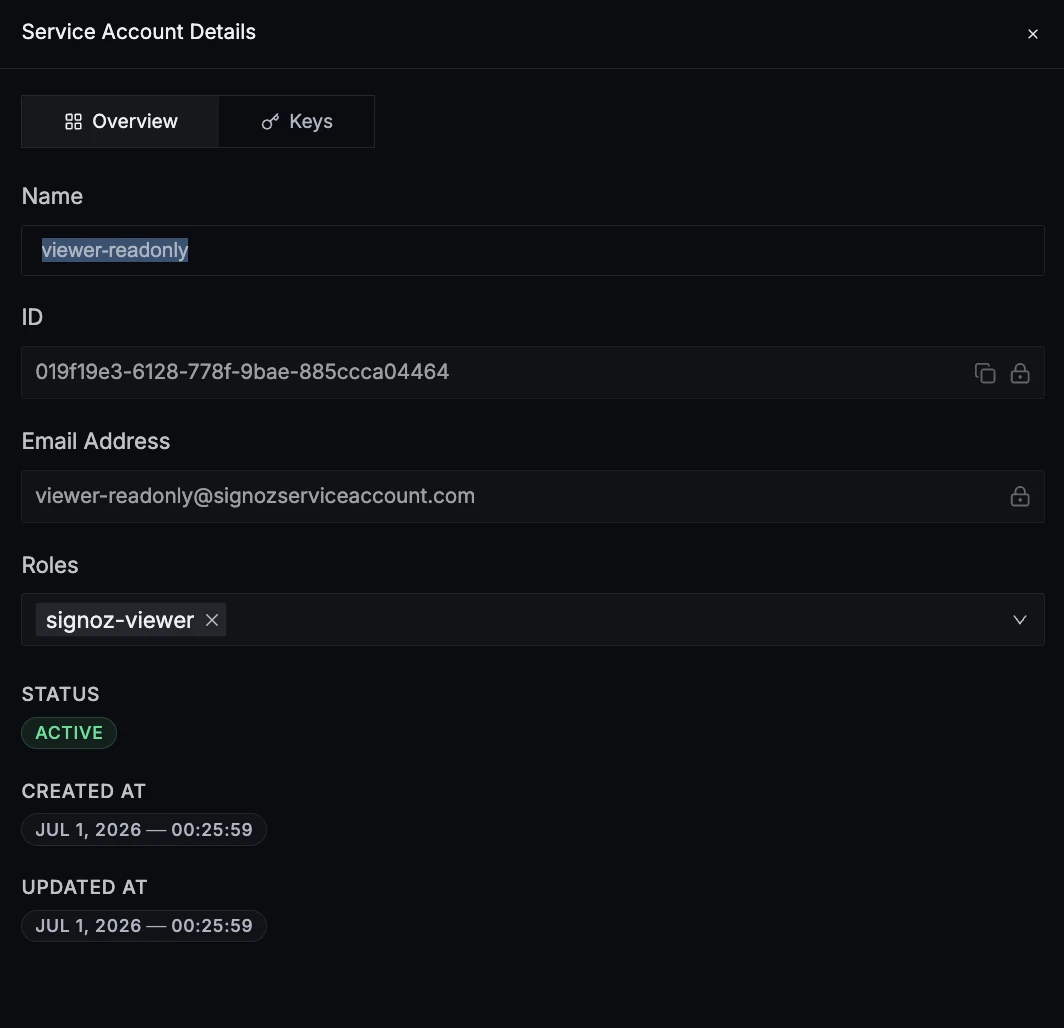
You now have a read-only service account that will hold every viewer's API key.
Step 2: Create the scoped custom role
- Go to Settings > Roles and click Custom role.
- Enter the name
viewer-service-account. - Configure the Transaction Groups below, then click Create role.
Adding a key is a compound transaction (factor-api-key:create and serviceaccount:attach). Scope serviceaccount:attach to the ID from Step 1 so viewers can add keys to that account only; serviceaccount:list lets them find it in the UI. In JSON mode, paste the following, replacing <service-account-id> with the ID you copied in Step 1:
[
  {
    "objectGroup": {
      "resource": { "kind": "factor-api-key", "type": "metaresource" },
      "selectors": ["*"]
    },
    "relation": "create"
  },
  {
    "objectGroup": {
      "resource": { "kind": "factor-api-key", "type": "metaresource" },
      "selectors": ["*"]
    },
    "relation": "list"
  },
  {
    "objectGroup": {
      "resource": { "kind": "serviceaccount", "type": "serviceaccount" },
      "selectors": ["<service-account-id>"]
    },
    "relation": "attach"
  },
  {
    "objectGroup": {
      "resource": { "kind": "serviceaccount", "type": "serviceaccount" },
      "selectors": ["*"]
    },
    "relation": "list"
  },
  {
    "objectGroup": {
      "resource": { "kind": "serviceaccount", "type": "serviceaccount" },
      "selectors": ["<service-account-id>"]
    },
    "relation": "read"
  }
]
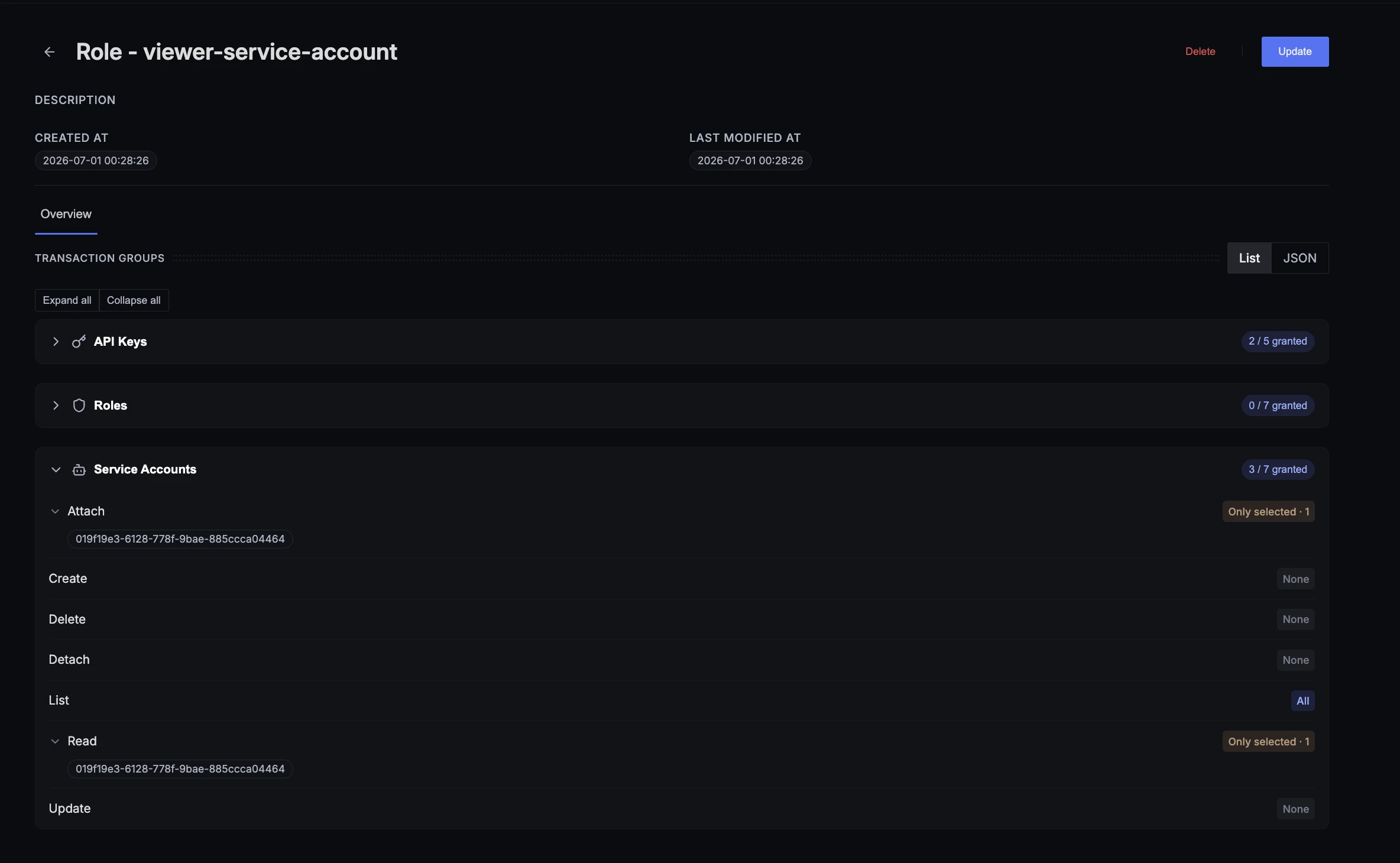
The role now lets its holders add a key to the viewer-readonly account and nothing else — they can't create service accounts, assign roles, or touch any other account.
Step 3: Assign the role to viewers
Give each viewer both signoz-viewer and viewer-service-account, via invite or SSO.
Direct invite — On Settings > Identity & Access > Members, click Invite member, enter the email, and assign both roles. See Invite Team Member.
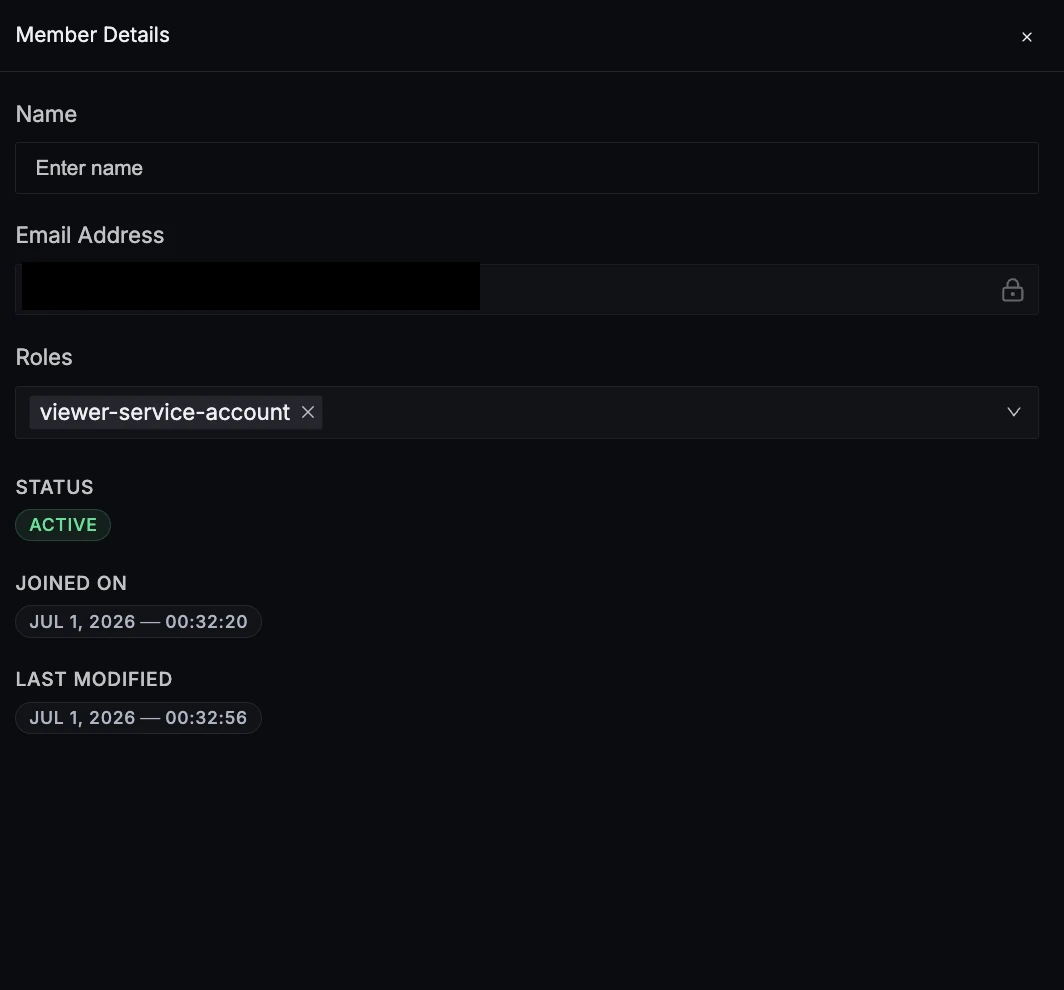
SSO group mapping — On Settings > Organization Settings > Members & SSO > Authenticated Domains, edit your domain and, under Role Mapping, set the Default Role to signoz-viewer and map your viewer group to viewer-service-account. Requires group fetching — see the Google Workspace SSO guide.
Assigned viewers now have read-only access plus permission to add their own key to the viewer-readonly account.
Step 4: Viewer adds a key
A viewer with the role can now add a key without admin help:
- Open Settings > Service Accounts >
viewer-readonly. - On the Keys tab, click Add Key, name it, and click Create.
- Copy the key value immediately — it is shown only once.
The key inherits the account's signoz-viewer role, so it has read-only access.
Validate
curl -X GET https://<signoz-url>/api/v1/service_accounts/me \
  -H "SIGNOZ-API-KEY: <your-service-account-key>"
Replace <signoz-url> with your SigNoz instance URL and <your-service-account-key> with the key from Step 4. A 200 confirms the key works; a 401 means the key value is incorrect.
Next Steps
- Roles — Create and manage managed and custom roles
- Service Accounts — Set up programmatic API access
- Transactions Reference — Look up the transactions for each resource
- SigNoz MCP Server — Use service account keys to connect AI tools to SigNoz via MCP


