Overview
The SigNoz Operator lets you manage the contents of a SigNoz instance from Kubernetes. You declare SigNoz objects as Kubernetes custom resources. The operator supports dashboards, alert rules, saved views, planned maintenance windows, routing policies, users, roles, service accounts, and SSO auth domains. You keep the resources in Git with your service code and apply them with kubectl apply, Argo CD, or Flux, the same way you apply your other manifests.
The operator does not install SigNoz. To install SigNoz on Kubernetes, use Foundry or the SigNoz Helm chart.
Prerequisites
- A Kubernetes cluster and
kubectlaccess to it with permission to install CRDs (CustomResourceDefinitions). - Helm 3, if you install with Helm.
- An instance of SigNoz (either Cloud or Self-Hosted).
- An API key for a SigNoz service account. The operator can do only what the roles of that service account allow. Give the service account a role that can manage every kind you plan to declare.
How It Works
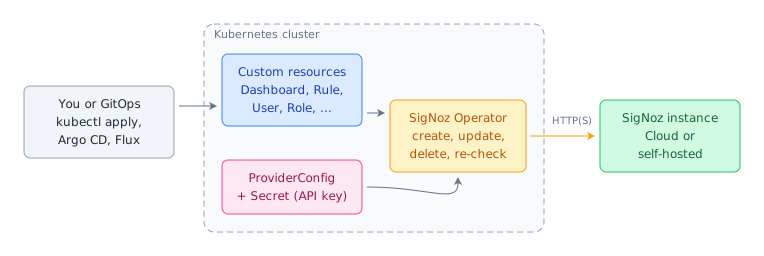
Each managed resource names a ProviderConfig. A ProviderConfig holds the URL of a SigNoz instance and a reference to the Secret with the API key. The operator reads both and creates the object through the SigNoz API.
After that, the operator compares the object in SigNoz with the manifest at a fixed interval. If someone changes the object outside Kubernetes, for example in the SigNoz UI, the operator reverts the change. When you delete the custom resource, the operator deletes the object in SigNoz.
The operator calls the SigNoz API over HTTP or HTTPS, as set in the endpoint URL. Use HTTPS, because the operator sends the API key in a request header. The SigNoz instance can run in the same cluster, in a different cluster, or outside Kubernetes. One operator can manage SigNoz Cloud and self-hosted instances at the same time.
Manage SigNoz Resources with the Operator
Step 1. Install the Operator
Both methods install the CRDs, the RBAC (role-based access control) rules, and the operator into the signoz-operator-system namespace.
Add the SigNoz Helm repository and install the signoz-operator chart:
helm repo add signoz https://charts.signoz.io
helm repo update
helm install signoz-operator signoz/signoz-operator \
  --namespace signoz-operator-system --create-namespace
Apply the manifest that ships with each operator release:
kubectl apply -f https://github.com/SigNoz/signoz-operator/releases/latest/download/signoz-operator.yamlIf you install CRDs with a separate process, use signoz-operator.crds.yaml from the same release. It holds only the CRDs.
Wait for the operator to start:
kubectl -n signoz-operator-system rollout status deployment/signoz-operatorThe command prints deployment "signoz-operator" successfully rolled out when the operator is running.
Step 2. Connect the Operator to SigNoz
Run the commands in this step and the next one in the namespace where you plan to create your SigNoz resources. The commands use your current namespace. To use a different one, add -n <namespace>.
Create a Secret that holds the API key:
kubectl create secret generic signoz-api --from-literal=token=<your-signoz-api-key>Save this manifest as signoz-provider.yaml. It creates a ProviderConfig named prod that reads the key from the Secret:
apiVersion: resources.signoz.io/v1alpha1
kind: ProviderConfig
metadata:
  name: prod
spec:
  endpoint:
    value: <your-signoz-url>
  auth:
    header:
      # The header name defaults to SIGNOZ-API-KEY
      valueFrom:
        secretKeyRef:
          name: signoz-api
          key: token
Verify these values:
<your-signoz-api-key>: The key of your SigNoz service account.<your-signoz-url>: The URL that you use to open SigNoz in a browser, for examplehttps://<your-workspace>.<region>.signoz.cloudfor SigNoz Cloud. For a self-hosted instance, use the URL at which the operator can reach SigNoz.
Apply the manifest:
kubectl apply -f signoz-provider.yamlThe operator reads the Secret from the namespace of the ProviderConfig. Keep the Secret and the ProviderConfig in the same namespace.
Step 3. Create a Dashboard
Every managed kind shares the same fields at the root of spec. The SigNoz object goes under spec.objectTemplate, as typed fields or as JSON.
Save one of these manifests as service-overview.yaml:
The API server validates these fields when you apply the manifest.
apiVersion: resources.signoz.io/v1alpha1
kind: Dashboard
metadata:
  name: service-overview
spec:
  providerConfigRef:
    name: prod
  interval: 5m
  objectTemplate:
    spec:
      name: service-overview
      schemaVersion: v6
      tags:
        - key: team
          value: platform
      spec:
        display:
          name: Service overview
          description: Golden signals for the demo service
        panels: {}
        layouts: []
        variables: []
Use this form to paste dashboard JSON. The operator sends the JSON to SigNoz without changes, so the JSON must include name and "schemaVersion": "v6". A dashboard that you download from the JSON editor in the SigNoz UI has only spec, tags, and image. Add the two fields before you paste it.
apiVersion: resources.signoz.io/v1alpha1
kind: Dashboard
metadata:
  name: service-overview
spec:
  providerConfigRef:
    name: prod
  interval: 5m
  objectTemplate:
    jsonSpec: |
      {
        "name": "service-overview",
        "schemaVersion": "v6",
        "tags": [{"key": "team", "value": "platform"}],
        "spec": {
          "display": {
            "name": "Service overview",
            "description": "Golden signals for the demo service"
          },
          "panels": {},
          "layouts": [],
          "variables": []
        }
}providerConfigRef.namenames theProviderConfigfrom Step 2.intervalsets how often the operator compares the dashboard in SigNoz with this manifest.
Apply the manifest:
kubectl apply -f service-overview.yamlThe samples directory of the operator repository has one sample manifest for each kind. For the list of kinds and the fields that all kinds share, see the SigNoz Operator reference.
Validate
-
Make sure that the
ProviderConfigis ready:kubectl get providerconfig prod -o jsonpath='{.status.conditions[?(@.type=="Ready")].status}'The command prints
Truewhen the operator can read the endpoint and the API key. -
Make sure that the dashboard is ready:
kubectl get dashboardsNAME READY REASON ID AGE service-overview True Created 0198c0e1-4f2a-7c9e-b3d5-6a1f8e2d4c07 12sREADYisTrueandIDshows the ID that SigNoz gave the dashboard.REASONcan also showUpdatedorSynced. -
In SigNoz, open Dashboards. The Service overview dashboard is in the list with the
team:platformtag. The creator is the service account of the operator.
The dashboard that the operator created, in the SigNoz dashboards list
In scripts and CI pipelines, wait on the Ready condition. It summarizes all other conditions:
kubectl wait --for=condition=Ready dashboard/service-overview --timeout=2mTroubleshooting
The resource shows Unauthorized
SigNoz rejected the API key with a 401 or 403 response.
- Make sure that the Secret holds the complete key and that nobody revoked the key in SigNoz.
- Make sure that the service account has a role that allows the action on this kind.
- Wait for the next retry. The operator retries at
retryIntervaland picks up a changed Secret without a restart.
The resource shows ProviderConfigNotReady
The operator cannot read the endpoint or the API key from the ProviderConfig. Run this command and read the reason and message of the Ready condition:
kubectl describe providerconfig prodA reason such as SecretNotFound or KeyNotFound means that the Secret or the key in it is missing from the namespace of the ProviderConfig.
The resource shows BackendUnreachable
The operator cannot connect to the endpoint. Make sure that the endpoint URL is correct and that the operator pod can reach it. For a self-hosted instance with a private CA, trust the CA in the ProviderConfig.
The resource shows Rejected or InvalidSpec
SigNoz rejected the body with a 400 response, or the jsonSpec is not valid JSON. The operator does not retry this failure. Run kubectl describe on the resource, fix the field named in the message, and apply the manifest again.
The ProviderConfig is ready but resources fail
Ready=True on a ProviderConfig means only that the operator can read the endpoint and the key. The operator does not send a test request to SigNoz. Read the conditions on the failing resource to see what SigNoz returned.
A namespace stays in Terminating
When you delete a namespace, Kubernetes can delete the Secret and the ProviderConfig before the managed resources. The operator then cannot reach SigNoz to delete the objects, and the resources keep the resources.signoz.io/finalizer finalizer. The resources show ProviderConfigNotReady.
To prevent this, delete the managed resources first and wait until they are gone. Then delete the namespace:
kubectl delete -n <namespace> --all \
  dashboards.resources.signoz.io,rules.resources.signoz.io,savedviews.resources.signoz.io,plannedmaintenances.resources.signoz.io,routepolicies.resources.signoz.io,users.resources.signoz.io,roles.resources.signoz.io,serviceaccounts.resources.signoz.io,authdomains.resources.signoz.io
kubectl delete namespace <namespace>
The first command waits until the operator deletes each object in SigNoz.
If the namespace is already stuck, remove the finalizer from each resource. Then delete the objects in SigNoz yourself, because the operator did not delete them:
kubectl patch <kind>.resources.signoz.io <name> -n <namespace> --type merge -p '{"metadata":{"finalizers":null}}'Changes in the SigNoz UI disappear
The operator reverts changes that you make in the SigNoz UI at the next interval. Edit the manifest instead. To pause the operator for one resource, set spec.suspend: true.
Limitations
- The operator is in alpha, and the
v1alpha1API can change. - If a SigNoz object with the same identity already exists, the operator adopts it. For example, a
Dashboardadopts a dashboard with the samename, and aUseradopts a user with the same email. With the defaultreclaimPolicy: Delete, the operator deletes that object in SigNoz when you delete the custom resource. To keep adopted objects, setreclaimPolicy: Orphan. - A resource in the
Terminalstate stays there until you edit the resource, change itsProviderConfigor Secret, or restart the operator. If you fix the cause only in SigNoz, the resource staysTerminal.
Licensing
The SigNoz Operator is open source under AGPL-3.0. You can use and distribute it at no cost, including into Kubernetes clusters that you do not own. Keep the license and copyright notices, and make the corresponding source available to your users. If you modify the operator and distribute it or offer it over a network, release your changes under the same license. This is a summary, not legal advice.
Self-Hosted SigNoz Community Edition needs no license. You need a commercial agreement only for Enterprise features, such as SSO/SAML and advanced RBAC, or for enterprise support and SLAs.
Next Steps
- To change how the operator connects to SigNoz, see Configure the SigNoz Operator.
- To look up kinds, spec fields, status conditions, and operator flags, see the SigNoz Operator reference.
- Download an existing dashboard from the JSON editor, add
nameandschemaVersion, and manage it withjsonSpec. - Read about alert types before you declare
Ruleresources. - To manage dashboards with Terraform instead, see the Terraform provider for dashboards.
Get Help
If you need help with the steps in this topic, please reach out to us on SigNoz Community Slack. If you are a SigNoz Cloud user, please use in product chat support located at the bottom right corner of your SigNoz instance or contact us at cloud-support@signoz.io.


